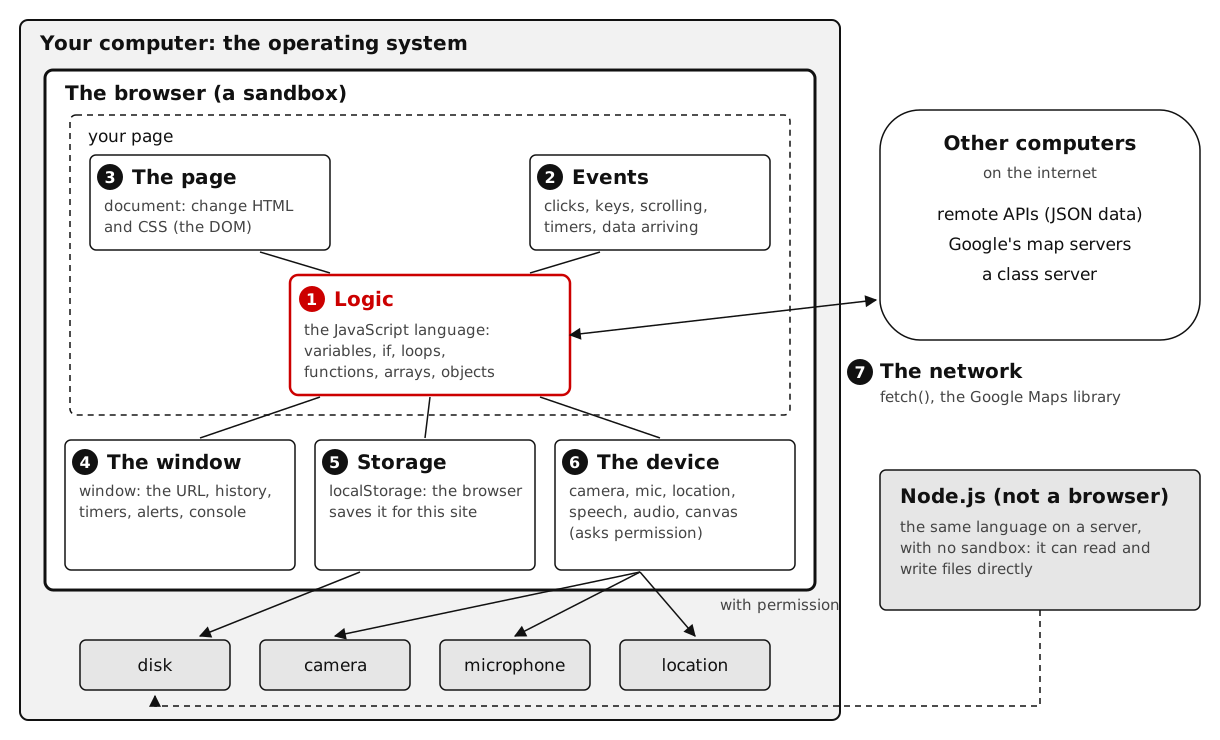
An architect doesn't lay bricks but still has to understand structure. How much do you need to understand about code to judge what an AI hands back? How would you know if you don't know enough?
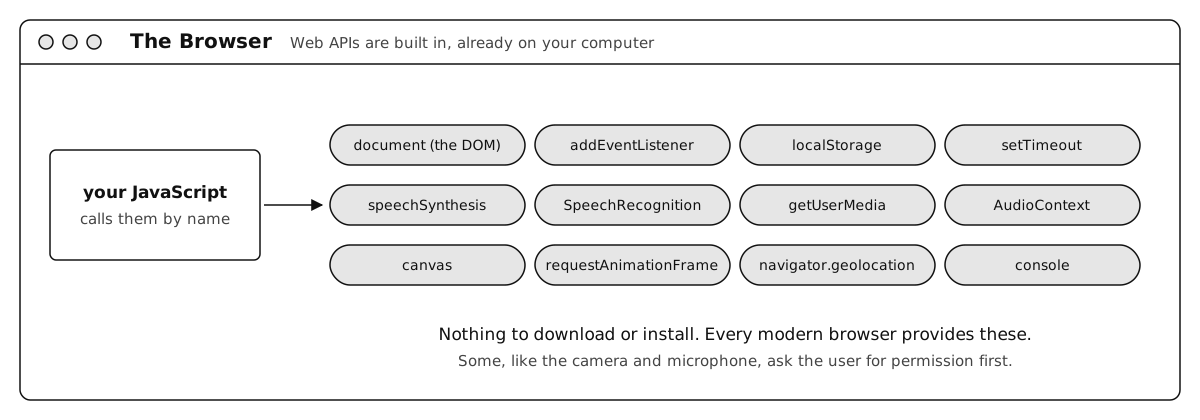
| Browser API | What it does | Core names |
|---|---|---|
| Web Speech API | Text to speech, and speech to text | speechSynthesis, SpeechSynthesisUtterance, SpeechRecognition |
| Media Capture and Streams API | Asks for the camera or microphone | navigator.mediaDevices.getUserMedia() |
| Web Audio API | Turns sound into numbers you can measure | AudioContext, createAnalyser() |
| Canvas API | Draws pixels, such as a webcam snapshot | getContext('2d'), drawImage() |
| (the window) | Runs a function once per screen frame | requestAnimationFrame() |
| Demo | What it does | The core line | Browsers | Uses the cloud? |
|---|---|---|---|---|
| speech-out.html text to speach |
Reads typed text aloud. Sliders set rate and pitch, a menu picks the voice. Voices come from the operating system, so the list differs per computer. | speechSynthesis.speak(new SpeechSynthesisUtterance(text)) |
Chrome, Safari, Firefox | Mostly no. It uses the voices installed on your computer. In Chrome, the voices named "Google ..." are cloud voices that run on Google's servers. |
| speech-in.html speach to text |
Say a color and the box turns that color. Chrome sends the sound to Google to be recognized, so it needs to be online (and Firefox has no support). | recognition.onresult thenheard.includes('red') |
Chrome, Safari (not Firefox) |
Yes. Chrome sends your audio to Google. Safari sends it to Apple, and Siri or Dictation must be turned on. Does not work offline. |
| microphone.html volume/sound via microphone |
Does not understand words. Measures how far the sound wave swings from silence (128), scales it to 0 to 100, and sizes a circle with it, once per frame. | getUserMedia({ audio: true })analyser.getByteTimeDomainData(samples) |
Chrome, Safari, Firefox | No. The sound is measured on your computer. |
| webcam.html video/webcam |
Shows the live camera in a <video>, copies one frame to a canvas as a snapshot, mirrors with CSS scaleX(-1). |
getUserMedia({ video: true })ctx.drawImage(video, 0, 0) |
Chrome, Safari, Firefox | No. The video stays on your computer. |
Hu shows how the cloud hides the labor and resources used: speech recognition quietly sends your voice to Google or Apple, for free. What is the price, and what is the cost, of the "free" parts? Who and how does this technology work for?
Create speech-out.html and build it up step by step. Everything (HTML, CSS and Javascript) is in this one file. Double-click on filename to run it.
Each step shows the whole file so far. Grey lines are from earlier steps, black lines are new. The last step is the complete file.
CSS, inside <style> Javascript, inside <script> the function speak()
<!DOCTYPE html> <html> <head> <meta charset="UTF-8"> <title>Speech Out</title> <style> /* keep the page narrow and centered */ body { font-family: sans-serif; max-width: 640px; margin: 2em auto; } /* a wide text box with large text */ textarea { width: 100%; font-size: 18px; } </style></head> <body> <h1>Speech Out: the page talks</h1> <!-- the textarea input box in HTML; user can input text --> <textarea id="textBox" rows="3">Hello Reed College!</textarea> <!-- clicking this runs speak() --> <button id="speakBtn">Speak</button> <!-- the script goes last, so the elements above already exist when it runs --> <script> // search the HTML for the element with id="textBox" (the text box) and store it in textBox const textBox = document.getElementById('textBox'); // search the HTML for the element with id="speakBtn" (the Speak button) and store it in speakBtn const speakBtn = document.getElementById('speakBtn'); // the event handler: runs each time the Speak button is clicked function speak() { const utterance = new SpeechSynthesisUtterance(textBox.value); // what to say speechSynthesis.speak(utterance); // say it } // register speak() as the event handler for the button's 'click' event: // from now on, every click on speakBtn calls speak() speakBtn.addEventListener('click', speak); </script></body> </html>
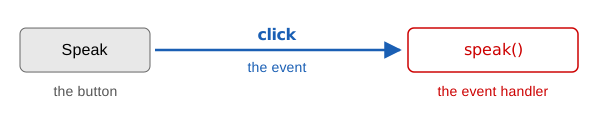
speak, is its event handler.
Javascript, inside <script>
<!-- 1. written in the HTML --> <button onclick="speak()">Speak</button> <!-- 2. written in the script (the button needs an id, so the script can find it) --> <button id="speakBtn">Speak</button> <script> const speakBtn = document.getElementById('speakBtn'); // find the button using id speakbtn speakBtn.addEventListener('click', speak); // assign function speak to the button for event click </script>These slides use the second, so all the Javascript stays inside
<script>.
In it, speak has no (): you hand the function to the button, and the button calls it on each click.
CSS, inside <style> Javascript, inside <script> the function speak()
<!DOCTYPE html> <html> <head> <meta charset="UTF-8"> <title>Speech Out</title> <style> /* keep the page narrow and centered */ body { font-family: sans-serif; max-width: 640px; margin: 2em auto; } /* a wide text box with large text */ textarea { width: 100%; font-size: 18px; } /* put each label on its own line */ label { display: block; margin: 0.6em 0; } </style></head> <body> <h1>Speech Out: the page talks</h1> <!-- the text the page will say; the visitor can change it --> <textarea id="textBox" rows="3">Hello Reed College!</textarea> <!-- sliders for speed and pitch; each span shows the slider's number --> <label>Rate <input type="range" id="rateSlider" min="0.5" max="2" step="0.1" value="1"> <span id="rateValue">1</span></label> <label>Pitch <input type="range" id="pitchSlider" min="0" max="2" step="0.1" value="1"> <span id="pitchValue">1</span></label> <!-- clicking this runs speak() --> <button id="speakBtn">Speak</button> <!-- the script goes last, so the elements above already exist when it runs --> <script> // search the HTML for the element with id="textBox" (the text box) and store it in textBox const textBox = document.getElementById('textBox'); // search the HTML for the element with id="rateSlider" (the Rate slider) and store it in rateSlider const rateSlider = document.getElementById('rateSlider'); // search the HTML for the element with id="pitchSlider" (the Pitch slider) and store it in pitchSlider const pitchSlider = document.getElementById('pitchSlider'); // search the HTML for the element with id="rateValue" (the number next to Rate) and store it in rateValue const rateValue = document.getElementById('rateValue'); // search the HTML for the element with id="pitchValue" (the number next to Pitch) and store it in pitchValue const pitchValue = document.getElementById('pitchValue'); // search the HTML for the element with id="speakBtn" (the Speak button) and store it in speakBtn const speakBtn = document.getElementById('speakBtn'); // the event handler: runs each time the Speak button is clicked function speak() { const utterance = new SpeechSynthesisUtterance(textBox.value); // what to say utterance.rate = Number(rateSlider.value); // 0.5 slow, 1 normal, 2 fast utterance.pitch = Number(pitchSlider.value); // 0 low, 1 normal, 2 high speechSynthesis.speak(utterance); // say it } // register speak() as the event handler for the button's 'click' event: // from now on, every click on speakBtn calls speak() speakBtn.addEventListener('click', speak); // 'input' event handlers: while a slider is dragged, show its number next to it function showRate() { rateValue.textContent = rateSlider.value; } rateSlider.addEventListener('input', showRate); function showPitch() { pitchValue.textContent = pitchSlider.value; } pitchSlider.addEventListener('input', showPitch); </script></body> </html>
rate and pitch are properties of the utterance. Set them after making it and before calling speak()..value is always a string, such as "1.5". Number() turns it into a number.'input' listeners at the bottom only update the number shown next to each slider while you drag. The utterance reads the sliders when Speak is pressed.CSS, inside <style> Javascript, inside <script> the function speak()
<!DOCTYPE html> <html> <head> <meta charset="UTF-8"> <title>Speech Out</title> <style> /* keep the page narrow and centered */ body { font-family: sans-serif; max-width: 640px; margin: 2em auto; } /* a wide text box with large text */ textarea { width: 100%; font-size: 18px; } /* put each label on its own line */ label { display: block; margin: 0.6em 0; } </style></head> <body> <h1>Speech Out: the page talks</h1> <!-- the text the page will say; the visitor can change it --> <textarea id="textBox" rows="3">Hello Reed College!</textarea> <!-- filled with this computer's voices by fillVoiceList() --> <label>Voice <select id="voiceSelect"></select></label> <!-- sliders for speed and pitch; each span shows the slider's number --> <label>Rate <input type="range" id="rateSlider" min="0.5" max="2" step="0.1" value="1"> <span id="rateValue">1</span></label> <label>Pitch <input type="range" id="pitchSlider" min="0" max="2" step="0.1" value="1"> <span id="pitchValue">1</span></label> <!-- clicking this runs speak() --> <button id="speakBtn">Speak</button> <!-- the script goes last, so the elements above already exist when it runs --> <script> // search the HTML for the element with id="textBox" (the text box) and store it in textBox const textBox = document.getElementById('textBox'); // search the HTML for the element with id="voiceSelect" (the voice dropdown) and store it in voiceSelect const voiceSelect = document.getElementById('voiceSelect'); // search the HTML for the element with id="rateSlider" (the Rate slider) and store it in rateSlider const rateSlider = document.getElementById('rateSlider'); // search the HTML for the element with id="pitchSlider" (the Pitch slider) and store it in pitchSlider const pitchSlider = document.getElementById('pitchSlider'); // search the HTML for the element with id="rateValue" (the number next to Rate) and store it in rateValue const rateValue = document.getElementById('rateValue'); // search the HTML for the element with id="pitchValue" (the number next to Pitch) and store it in pitchValue const pitchValue = document.getElementById('pitchValue'); // search the HTML for the element with id="speakBtn" (the Speak button) and store it in speakBtn const speakBtn = document.getElementById('speakBtn'); // the voices on this computer, filled in by fillVoiceList() let voices = []; // The list of voices comes from the operating system, and the browser // loads it a moment AFTER the page loads. So we fill the dropdown once // now and again whenever the browser says the list has changed. function fillVoiceList() { voices = speechSynthesis.getVoices(); // ask the browser for the list voiceSelect.innerHTML = ''; // empty the dropdown for (let i = 0; i < voices.length; i++) { // one option per voice const option = document.createElement('option'); option.value = i; // remember the voice's position in the list option.textContent = voices[i].name + ' (' + voices[i].lang + ')'; // what the visitor sees voiceSelect.appendChild(option); // add the option to the dropdown } } fillVoiceList(); // fill it now... // ...and register fillVoiceList() as the event handler for 'voiceschanged', // the event the browser fires when the voice list arrives or changes speechSynthesis.addEventListener('voiceschanged', fillVoiceList); // the event handler: runs each time the Speak button is clicked function speak() { const utterance = new SpeechSynthesisUtterance(textBox.value); // what to say utterance.rate = Number(rateSlider.value); // 0.5 slow, 1 normal, 2 fast utterance.pitch = Number(pitchSlider.value); // 0 low, 1 normal, 2 high if (voices.length > 0) { // only once the list has arrived utterance.voice = voices[voiceSelect.value]; // the voice picked in the dropdown } speechSynthesis.speak(utterance); // say it } // register speak() as the event handler for the button's 'click' event: // from now on, every click on speakBtn calls speak() speakBtn.addEventListener('click', speak); // 'input' event handlers: while a slider is dragged, show its number next to it function showRate() { rateValue.textContent = rateSlider.value; } rateSlider.addEventListener('input', showRate); function showPitch() { pitchValue.textContent = pitchSlider.value; } pitchSlider.addEventListener('input', showPitch); </script></body> </html>
speechSynthesis.getVoices() returns an array of voices. They belong to the operating system, so the list differs between computers.fillVoiceList() runs once right away and again on the 'voiceschanged' event.for loop makes one <option> per voice. Each option's value is its position in the array, so voices[voiceSelect.value] gets the chosen voice back.if (voices.length > 0) skips the voice when the list is still empty, so Speak works even before the list arrives.CSS, inside <style> Javascript, inside <script> the function speak()
<!DOCTYPE html> <html> <head> <meta charset="UTF-8"> <title>Speech Out</title> <style> /* keep the page narrow and centered */ body { font-family: sans-serif; max-width: 640px; margin: 2em auto; } /* a wide text box with large text */ textarea { width: 100%; font-size: 18px; } /* put each label on its own line */ label { display: block; margin: 0.6em 0; } </style></head> <body> <h1>Speech Out: the page talks</h1> <!-- the text the page will say; the visitor can change it --> <textarea id="textBox" rows="3">Hello Reed College!</textarea> <!-- filled with this computer's voices by fillVoiceList() --> <label>Voice <select id="voiceSelect"></select></label> <!-- sliders for speed and pitch; each span shows the slider's number --> <label>Rate <input type="range" id="rateSlider" min="0.5" max="2" step="0.1" value="1"> <span id="rateValue">1</span></label> <label>Pitch <input type="range" id="pitchSlider" min="0" max="2" step="0.1" value="1"> <span id="pitchValue">1</span></label> <!-- clicking this runs speak() --> <button id="speakBtn">Speak</button> <!-- clicking this stops the speaking --> <button id="stopBtn">Stop</button> <!-- shows "speaking..." or "ready" --> <p id="status">ready</p> <!-- the script goes last, so the elements above already exist when it runs --> <script> // search the HTML for the element with id="textBox" (the text box) and store it in textBox const textBox = document.getElementById('textBox'); // search the HTML for the element with id="voiceSelect" (the voice dropdown) and store it in voiceSelect const voiceSelect = document.getElementById('voiceSelect'); // search the HTML for the element with id="rateSlider" (the Rate slider) and store it in rateSlider const rateSlider = document.getElementById('rateSlider'); // search the HTML for the element with id="pitchSlider" (the Pitch slider) and store it in pitchSlider const pitchSlider = document.getElementById('pitchSlider'); // search the HTML for the element with id="rateValue" (the number next to Rate) and store it in rateValue const rateValue = document.getElementById('rateValue'); // search the HTML for the element with id="pitchValue" (the number next to Pitch) and store it in pitchValue const pitchValue = document.getElementById('pitchValue'); // search the HTML for the element with id="speakBtn" (the Speak button) and store it in speakBtn const speakBtn = document.getElementById('speakBtn'); // search the HTML for the element with id="stopBtn" (the Stop button) and store it in stopBtn const stopBtn = document.getElementById('stopBtn'); // search the HTML for the element with id="status" (the status line) and store it in statusText const statusText = document.getElementById('status'); // the voices on this computer, filled in by fillVoiceList() let voices = []; // The list of voices comes from the operating system, and the browser // loads it a moment AFTER the page loads. So we fill the dropdown once // now and again whenever the browser says the list has changed. function fillVoiceList() { voices = speechSynthesis.getVoices(); // ask the browser for the list voiceSelect.innerHTML = ''; // empty the dropdown for (let i = 0; i < voices.length; i++) { // one option per voice const option = document.createElement('option'); option.value = i; // remember the voice's position in the list option.textContent = voices[i].name + ' (' + voices[i].lang + ')'; // what the visitor sees voiceSelect.appendChild(option); // add the option to the dropdown } } fillVoiceList(); // fill it now... // ...and register fillVoiceList() as the event handler for 'voiceschanged', // the event the browser fires when the voice list arrives or changes speechSynthesis.addEventListener('voiceschanged', fillVoiceList); // the event handler: runs each time the Speak button is clicked function speak() { speechSynthesis.cancel(); // stop anything already being said const utterance = new SpeechSynthesisUtterance(textBox.value); // what to say utterance.rate = Number(rateSlider.value); // 0.5 slow, 1 normal, 2 fast utterance.pitch = Number(pitchSlider.value); // 0 low, 1 normal, 2 high if (voices.length > 0) { // only once the list has arrived utterance.voice = voices[voiceSelect.value]; // the voice picked in the dropdown } // event handlers on the utterance: the browser calls them when speaking starts and ends function showSpeaking() { statusText.textContent = 'speaking...'; } utterance.onstart = showSpeaking; function showReady() { statusText.textContent = 'ready'; } utterance.onend = showReady; speechSynthesis.speak(utterance); // say it } // register speak() as the event handler for the button's 'click' event: // from now on, every click on speakBtn calls speak() speakBtn.addEventListener('click', speak); // the Stop button's click event handler: stopSpeaking() cancels the speech function stopSpeaking() { speechSynthesis.cancel(); } stopBtn.addEventListener('click', stopSpeaking); // 'input' event handlers: while a slider is dragged, show its number next to it function showRate() { rateValue.textContent = rateSlider.value; } rateSlider.addEventListener('input', showRate); function showPitch() { pitchValue.textContent = pitchSlider.value; } pitchSlider.addEventListener('input', showPitch); </script></body> </html>
speak() call joins a queue. speechSynthesis.cancel() empties the queue. It runs at the start of speak(), so pressing Speak twice does not stack two sentences, and the Stop button calls it too.onstart and onend are events of the utterance. Like a click listener, they are functions the browser calls later, when speaking starts and ends.speech-out.html.Create speech-in.html and build it up step by step. Everything is in this one file. Open it with Live Server: browsers only allow the microphone on localhost or https:// pages. Use Chrome, and be online.
Each step shows the whole file so far. Grey lines are from earlier steps, black lines are new. The last step is the complete file.
CSS, inside <style> Javascript, inside <script>
<!DOCTYPE html> <html> <head> <meta charset="UTF-8"> <title>Speech In</title> <style> /* keep the page narrow and centered */ body { font-family: sans-serif; max-width: 640px; margin: 2em auto; } /* large text for what was heard */ #transcript { font-size: 22px; } </style></head> <body> <h1>Speech In: the page listens</h1> <!-- starts listening --> <button id="startBtn">Start listening</button> <!-- says whether the page is listening, or what went wrong --> <p id="status">not listening</p> <!-- the words the browser heard go here --> <p>What the browser heard:</p> <p id="transcript">...</p> <!-- the script goes last, so the elements above already exist when it runs --> <script> // search the HTML for the element with id="startBtn" (the Start button) and store it in startBtn const startBtn = document.getElementById('startBtn'); // search the HTML for the element with id="status" (the status line) and store it in statusText const statusText = document.getElementById('status'); // search the HTML for the element with id="transcript" (the line that shows what was heard) and store it in transcriptText const transcriptText = document.getElementById('transcript'); // Chrome and Safari still call this webkitSpeechRecognition. // Firefox has neither name, so there we show a message and stop. const SpeechRecognition = window.SpeechRecognition || window.webkitSpeechRecognition; if (!SpeechRecognition) { // no speech recognition in this browser: say so and turn the buttons off statusText.textContent = 'This browser has no speech recognition. Try Chrome.'; startBtn.disabled = true; } else { // make a recognizer that listens for English const recognition = new SpeechRecognition(); recognition.lang = 'en-US'; // The 'result' event handler. Fires every time the browser has a new or improved guess. function handleResult(event) { const heard = event.results[0][0].transcript.toLowerCase(); // first guess, in lower case transcriptText.textContent = heard; // show it on the page } recognition.onresult = handleResult; // click event handler for Start: startListening() starts listening function startListening() { recognition.start(); } startBtn.addEventListener('click', startListening); } </script></body> </html>
|| picks whichever of the two names exists. In Firefox neither does, so the if branch disables the button and nothing else runs.handleResult is the function the browser calls when it has turned sound into words; recognition.onresult = handleResult hands it over. event.results[0][0].transcript means the first guess for the first phrase. It is an ordinary string.recognition.start() runs on a click. The first time, the browser asks for the microphone. Run it with Live Server in Chrome, and be online: Chrome sends the sound to Google to be recognized.CSS, inside <style> Javascript, inside <script>
<!DOCTYPE html> <html> <head> <meta charset="UTF-8"> <title>Speech In</title> <style> /* keep the page narrow and centered */ body { font-family: sans-serif; max-width: 640px; margin: 2em auto; } /* large text for what was heard */ #transcript { font-size: 22px; } /* a wide gray box; the transition makes a new color fade in instead of jumping */ #box { height: 160px; border: 1px solid #ccc; border-radius: 8px; background: #eee; transition: background 0.4s; } </style></head> <body> <h1>Speech In: the page listens</h1> <!-- starts listening --> <button id="startBtn">Start listening</button> <!-- says whether the page is listening, or what went wrong --> <p id="status">not listening</p> <!-- the box that changes color --> <p>Say a color: red, orange, yellow, green, blue, purple, pink, black, white.</p> <div id="box"></div> <!-- the words the browser heard go here --> <p>What the browser heard:</p> <p id="transcript">...</p> <!-- the script goes last, so the elements above already exist when it runs --> <script> // search the HTML for the element with id="startBtn" (the Start button) and store it in startBtn const startBtn = document.getElementById('startBtn'); // search the HTML for the element with id="status" (the status line) and store it in statusText const statusText = document.getElementById('status'); // search the HTML for the element with id="transcript" (the line that shows what was heard) and store it in transcriptText const transcriptText = document.getElementById('transcript'); // search the HTML for the element with id="box" (the color box) and store it in box const box = document.getElementById('box'); // the words to listen for (each one is also a CSS color name) const colors = ['red', 'orange', 'yellow', 'green', 'blue', 'purple', 'pink', 'black', 'white']; // Chrome and Safari still call this webkitSpeechRecognition. // Firefox has neither name, so there we show a message and stop. const SpeechRecognition = window.SpeechRecognition || window.webkitSpeechRecognition; if (!SpeechRecognition) { // no speech recognition in this browser: say so and turn the buttons off statusText.textContent = 'This browser has no speech recognition. Try Chrome.'; startBtn.disabled = true; } else { // make a recognizer that listens for English const recognition = new SpeechRecognition(); recognition.lang = 'en-US'; // The 'result' event handler. Fires every time the browser has a new or improved guess. function handleResult(event) { const heard = event.results[0][0].transcript.toLowerCase(); // first guess, in lower case transcriptText.textContent = heard; // show it on the page // The "voice command" part: is one of our color words in the string? for (const color of colors) { // check each color word if (heard.includes(color)) { // is it anywhere in what was heard? box.style.background = color; // then paint the box that color } } } recognition.onresult = handleResult; // click event handler for Start: startListening() starts listening function startListening() { recognition.start(); } startBtn.addEventListener('click', startListening); } </script></body> </html>
colors array lists the words to listen for. The for...of loop checks each one.heard.includes(color) finds the word anywhere in the sentence, so "make it green please" works. A voice command is nothing more than this string check.box.style.background.transition: background 0.4s makes the color fade instead of jump.CSS, inside <style> Javascript, inside <script>
<!DOCTYPE html> <html> <head> <meta charset="UTF-8"> <title>Speech In</title> <style> /* keep the page narrow and centered */ body { font-family: sans-serif; max-width: 640px; margin: 2em auto; } /* large text for what was heard */ #transcript { font-size: 22px; } /* a wide gray box; the transition makes a new color fade in instead of jumping */ #box { height: 160px; border: 1px solid #ccc; border-radius: 8px; background: #eee; transition: background 0.4s; } </style></head> <body> <h1>Speech In: the page listens</h1> <!-- starts listening --> <button id="startBtn">Start listening</button> <!-- stops listening --> <button id="stopBtn">Stop</button> <!-- says whether the page is listening, or what went wrong --> <p id="status">not listening</p> <!-- the box that changes color --> <p>Say a color: red, orange, yellow, green, blue, purple, pink, black, white.</p> <div id="box"></div> <!-- the words the browser heard go here --> <p>What the browser heard:</p> <p id="transcript">...</p> <!-- the script goes last, so the elements above already exist when it runs --> <script> // search the HTML for the element with id="startBtn" (the Start button) and store it in startBtn const startBtn = document.getElementById('startBtn'); // search the HTML for the element with id="stopBtn" (the Stop button) and store it in stopBtn const stopBtn = document.getElementById('stopBtn'); // search the HTML for the element with id="status" (the status line) and store it in statusText const statusText = document.getElementById('status'); // search the HTML for the element with id="transcript" (the line that shows what was heard) and store it in transcriptText const transcriptText = document.getElementById('transcript'); // search the HTML for the element with id="box" (the color box) and store it in box const box = document.getElementById('box'); // the words to listen for (each one is also a CSS color name) const colors = ['red', 'orange', 'yellow', 'green', 'blue', 'purple', 'pink', 'black', 'white']; // Chrome and Safari still call this webkitSpeechRecognition. // Firefox has neither name, so there we show a message and stop. const SpeechRecognition = window.SpeechRecognition || window.webkitSpeechRecognition; if (!SpeechRecognition) { // no speech recognition in this browser: say so and turn the buttons off statusText.textContent = 'This browser has no speech recognition. Try Chrome.'; startBtn.disabled = true; stopBtn.disabled = true; } else { // make a recognizer that listens for English const recognition = new SpeechRecognition(); recognition.lang = 'en-US'; recognition.continuous = true; // keep listening after the first phrase recognition.interimResults = true; // show guesses while the person is still talking // event handlers for the recognizer's start, end and error events: update the status line function showListening() { statusText.textContent = 'listening...'; } recognition.onstart = showListening; function showNotListening() { statusText.textContent = 'not listening'; } recognition.onend = showNotListening; function showError(event) { statusText.textContent = 'error: ' + event.error; } recognition.onerror = showError; // The 'result' event handler. Fires every time the browser has a new or improved guess. function handleResult(event) { // with continuous on, results holds every phrase so far: take the latest one const latest = event.results[event.results.length - 1]; const heard = latest[0].transcript.toLowerCase(); // its first guess, in lower case transcriptText.textContent = heard; // show it on the page // The "voice command" part: is one of our color words in the string? for (const color of colors) { // check each color word if (heard.includes(color)) { // is it anywhere in what was heard? box.style.background = color; // then paint the box that color } } } recognition.onresult = handleResult; // click event handler for Start: startListening() starts listening function startListening() { recognition.start(); } startBtn.addEventListener('click', startListening); // click event handler for Stop: stops listening function stopListening() { recognition.stop(); } stopBtn.addEventListener('click', stopListening); } </script></body> </html>
continuous = true keeps listening after the first phrase. Now event.results holds every phrase so far, so the line that read [0] is replaced: event.results[event.results.length - 1] is the latest phrase.interimResults = true makes onresult fire several times per phrase as the guess improves. Speak slowly and watch the text change.onstart, onend and onerror write to the status line. onerror is where not-allowed (microphone blocked) and network (offline) show up.recognition.stop(). This is now the complete speech-in.html.colors array.Create microphone.html and build it up step by step. Everything is in this one file. Open it with Live Server: browsers only allow the microphone on localhost or https:// pages. The sound never leaves the computer.
Each step shows the whole file so far. Grey lines are from earlier steps, black lines are new. The last step is the complete file.
CSS, inside <style> Javascript, inside <script> the function startMicrophone()
<!DOCTYPE html> <html> <head> <meta charset="UTF-8"> <title>Microphone</title> <style> /* keep the page narrow and centered */ body { font-family: sans-serif; max-width: 640px; margin: 2em auto; } </style></head> <body> <h1>Microphone: the page hears how loud you are</h1> <!-- starts the microphone --> <button id="startBtn">Start microphone</button> <!-- says whether the microphone is on, or what went wrong --> <p id="status">microphone off</p> <!-- the script goes last, so the elements above already exist when it runs --> <script> // search the HTML for the element with id="startBtn" (the Start button) and store it in startBtn const startBtn = document.getElementById('startBtn'); // search the HTML for the element with id="status" (the status line) and store it in statusText const statusText = document.getElementById('status'); // declared out here, not inside a function, because readVolume() needs them too let analyser; let samples; // async lets this function wait (await) for the visitor's answer async function startMicrophone() { try { // Same call as webcam.html, asking for audio instead of video. const stream = await navigator.mediaDevices.getUserMedia({ audio: true }); // The Web Audio API: plug the microphone into an "analyser", // a box that lets us read the sound as numbers. const audioContext = new AudioContext(); // the patch board const source = audioContext.createMediaStreamSource(stream); // the microphone's plug analyser = audioContext.createAnalyser(); // the box that measures source.connect(analyser); // the cable between them samples = new Uint8Array(analyser.fftSize); // a list of numbers to hold the sound wave statusText.textContent = 'microphone on, make some noise'; } catch (error) { // blocked, no microphone, or the page was opened as a file statusText.textContent = 'could not start microphone: ' + error.name; } } // register startMicrophone() as the click event handler for the Start button startBtn.addEventListener('click', startMicrophone); </script></body> </html>
getUserMedia({ audio: true }) is the same call as the webcam, asking for sound instead of video, inside the same try / catch.AudioContext is the patch board, createMediaStreamSource(stream) is the microphone's plug, and source.connect(analyser) runs a cable into the analyser, which can report the sound as numbers.samples is a Uint8Array: a list of whole numbers from 0 to 255, with one slot for each number the analyser hands over (fftSize, 2048 by default).analyser and samples are declared at the top with let, outside the function, because the function in Step 2 needs them too. A variable made inside a function is gone when the function ends.CSS, inside <style> Javascript, inside <script> the functions startMicrophone() and readVolume()
<!DOCTYPE html> <html> <head> <meta charset="UTF-8"> <title>Microphone</title> <style> /* keep the page narrow and centered */ body { font-family: sans-serif; max-width: 640px; margin: 2em auto; } /* a large volume number */ #volumeNumber { font-size: 22px; } </style></head> <body> <h1>Microphone: the page hears how loud you are</h1> <!-- starts the microphone --> <button id="startBtn">Start microphone</button> <!-- says whether the microphone is on, or what went wrong --> <p id="status">microphone off</p> <!-- the volume, 0 to 100, updated every frame --> <p>Volume: <span id="volumeNumber">0</span></p> <!-- the script goes last, so the elements above already exist when it runs --> <script> // search the HTML for the element with id="startBtn" (the Start button) and store it in startBtn const startBtn = document.getElementById('startBtn'); // search the HTML for the element with id="status" (the status line) and store it in statusText const statusText = document.getElementById('status'); // search the HTML for the element with id="volumeNumber" (the volume number) and store it in volumeNumber const volumeNumber = document.getElementById('volumeNumber'); // declared out here, not inside a function, because readVolume() needs them too let analyser; let samples; // async lets this function wait (await) for the visitor's answer async function startMicrophone() { try { // Same call as webcam.html, asking for audio instead of video. const stream = await navigator.mediaDevices.getUserMedia({ audio: true }); // The Web Audio API: plug the microphone into an "analyser", // a box that lets us read the sound as numbers. const audioContext = new AudioContext(); // the patch board const source = audioContext.createMediaStreamSource(stream); // the microphone's plug analyser = audioContext.createAnalyser(); // the box that measures source.connect(analyser); // the cable between them samples = new Uint8Array(analyser.fftSize); // a list of numbers to hold the sound wave statusText.textContent = 'microphone on, make some noise'; readVolume(); // start reading the volume, once per frame } catch (error) { // blocked, no microphone, or the page was opened as a file statusText.textContent = 'could not start microphone: ' + error.name; } } // Called once per frame, like a render loop. function readVolume() { requestAnimationFrame(readVolume); // run this again next frame, about 60 times a second // Fill "samples" with the current sound wave. Silence is 128, // loud sound swings far above and below 128. analyser.getByteTimeDomainData(samples); // Volume = how far the wave gets from 128, at its furthest. let loudest = 0; for (let i = 0; i < samples.length; i++) { // look at every sample const distance = Math.abs(samples[i] - 128); // how far from silence if (distance > loudest) { // keep the biggest one loudest = distance; } } const volume = Math.round(loudest / 128 * 100); // 0 (silent) to 100 (very loud) // One number in, anything you like out. volumeNumber.textContent = volume; } // register startMicrophone() as the click event handler for the Start button startBtn.addEventListener('click', startMicrophone); </script></body> </html>
requestAnimationFrame(readVolume) asks the browser to run readVolume again before it next redraws the screen, about 60 times a second. Asking at the top of the function makes a loop that never stops.getByteTimeDomainData(samples) fills samples with the sound wave right now. 128 is silence; loud sound swings far above and below it.for loop finds the sample furthest from 128 (Math.abs ignores whether it is above or below). Dividing by 128 and multiplying by 100 turns it into a volume from 0 to 100.startMicrophone(), readVolume();, starts the loop once the microphone is ready.CSS, inside <style> Javascript, inside <script> the functions startMicrophone() and readVolume()
<!DOCTYPE html> <html> <head> <meta charset="UTF-8"> <title>Microphone</title> <style> /* keep the page narrow and centered */ body { font-family: sans-serif; max-width: 640px; margin: 2em auto; } /* a large volume number */ #volumeNumber { font-size: 22px; } /* a dark box that keeps the circle in its middle */ #stage { height: 320px; background: #111; border-radius: 8px; display: flex; /* flex, plus the two center rules, */ align-items: center; /* centers the circle up and down */ justify-content: center; /* and left to right */ overflow: hidden; /* a very big circle is cut off at the edges */ } /* a small green circle: border-radius 50% rounds the square div */ #circle { width: 40px; height: 40px; border-radius: 50%; background: #33cc88; } </style></head> <body> <h1>Microphone: the page hears how loud you are</h1> <!-- starts the microphone --> <button id="startBtn">Start microphone</button> <!-- says whether the microphone is on, or what went wrong --> <p id="status">microphone off</p> <!-- the volume, 0 to 100, updated every frame --> <p>Volume: <span id="volumeNumber">0</span></p> <!-- a dark stage with a circle that grows with the volume --> <div id="stage"> <div id="circle"></div> </div> <!-- the script goes last, so the elements above already exist when it runs --> <script> // search the HTML for the element with id="startBtn" (the Start button) and store it in startBtn const startBtn = document.getElementById('startBtn'); // search the HTML for the element with id="status" (the status line) and store it in statusText const statusText = document.getElementById('status'); // search the HTML for the element with id="volumeNumber" (the volume number) and store it in volumeNumber const volumeNumber = document.getElementById('volumeNumber'); // search the HTML for the element with id="circle" (the circle) and store it in circle const circle = document.getElementById('circle'); // declared out here, not inside a function, because readVolume() needs them too let analyser; let samples; // async lets this function wait (await) for the visitor's answer async function startMicrophone() { try { // Same call as webcam.html, asking for audio instead of video. const stream = await navigator.mediaDevices.getUserMedia({ audio: true }); // The Web Audio API: plug the microphone into an "analyser", // a box that lets us read the sound as numbers. const audioContext = new AudioContext(); // the patch board const source = audioContext.createMediaStreamSource(stream); // the microphone's plug analyser = audioContext.createAnalyser(); // the box that measures source.connect(analyser); // the cable between them samples = new Uint8Array(analyser.fftSize); // a list of numbers to hold the sound wave statusText.textContent = 'microphone on, make some noise'; readVolume(); // start reading the volume, once per frame } catch (error) { // blocked, no microphone, or the page was opened as a file statusText.textContent = 'could not start microphone: ' + error.name; } } // Called once per frame, like a render loop. function readVolume() { requestAnimationFrame(readVolume); // run this again next frame, about 60 times a second // Fill "samples" with the current sound wave. Silence is 128, // loud sound swings far above and below 128. analyser.getByteTimeDomainData(samples); // Volume = how far the wave gets from 128, at its furthest. let loudest = 0; for (let i = 0; i < samples.length; i++) { // look at every sample const distance = Math.abs(samples[i] - 128); // how far from silence if (distance > loudest) { // keep the biggest one loudest = distance; } } const volume = Math.round(loudest / 128 * 100); // 0 (silent) to 100 (very loud) // One number in, anything you like out. volumeNumber.textContent = volume; const size = 40 + volume * 3; // 40px when silent, bigger when loud circle.style.width = size + 'px'; // CSS sizes need a unit circle.style.height = size + 'px'; } // register startMicrophone() as the click event handler for the Start button startBtn.addEventListener('click', startMicrophone); </script></body> </html>
border-radius: 50% makes the square div a circle, and display: flex with the two center rules keeps it in the middle of the stage as it grows.microphone.html.volume * 3 to volume * 10, or have the volume change the page background instead of the circle.Create webcam.html and build it up step by step. Everything is in this one file. Open it with Live Server: browsers only allow the camera on localhost or https:// pages. The video never leaves the computer.
Each step shows the whole file so far. Grey lines are from earlier steps, black lines are new. The last step is the complete file.
CSS, inside <style> Javascript, inside <script> the function startCamera()
<!DOCTYPE html> <html> <head> <meta charset="UTF-8"> <title>Webcam</title> <style> /* keep the page narrow and centered */ body { font-family: sans-serif; max-width: 640px; margin: 2em auto; } /* the video and the snapshot fill the width, dark until something is shown */ video, canvas { width: 100%; background: #111; border-radius: 8px; display: block; } </style></head> <body> <h1>Webcam: the page sees</h1> <!-- starts the camera --> <button id="startBtn">Start camera</button> <!-- the live camera; autoplay starts it, muted is needed for autoplay, playsinline keeps it on the page on phones --> <video id="video" autoplay playsinline muted></video> <!-- the script goes last, so the elements above already exist when it runs --> <script> // search the HTML for the element with id="video" (the video) and store it in video const video = document.getElementById('video'); // search the HTML for the element with id="startBtn" (the Start button) and store it in startBtn const startBtn = document.getElementById('startBtn'); // async lets this function wait (await) for the visitor's answer async function startCamera() { const stream = await navigator.mediaDevices.getUserMedia({ video: true }); // ask, and wait for the answer video.srcObject = stream; // show the live stream in the <video> } // register startCamera() as the click event handler for the Start button startBtn.addEventListener('click', startCamera); </script></body> </html>
async in front of the function lets it use await. getUserMedia({ video: true }) shows the permission prompt, and await makes the code wait on that line until the visitor answers.video.srcObject = stream plugs it into an ordinary <video> element, which plays it like any other video.autoplay starts it playing, muted is required for autoplay, and playsinline keeps it on the page on phones. The CSS makes it full width with a dark background.CSS, inside <style> Javascript, inside <script> the function startCamera()
<!DOCTYPE html> <html> <head> <meta charset="UTF-8"> <title>Webcam</title> <style> /* keep the page narrow and centered */ body { font-family: sans-serif; max-width: 640px; margin: 2em auto; } /* the video and the snapshot fill the width, dark until something is shown */ video, canvas { width: 100%; background: #111; border-radius: 8px; display: block; } </style></head> <body> <h1>Webcam: the page sees</h1> <!-- starts the camera --> <button id="startBtn">Start camera</button> <!-- says whether the camera is on, or what went wrong --> <p id="status">camera off</p> <!-- the live camera; autoplay starts it, muted is needed for autoplay, playsinline keeps it on the page on phones --> <video id="video" autoplay playsinline muted></video> <!-- the script goes last, so the elements above already exist when it runs --> <script> // search the HTML for the element with id="video" (the video) and store it in video const video = document.getElementById('video'); // search the HTML for the element with id="startBtn" (the Start button) and store it in startBtn const startBtn = document.getElementById('startBtn'); // search the HTML for the element with id="status" (the status line) and store it in statusText const statusText = document.getElementById('status'); // async lets this function wait (await) for the visitor's answer async function startCamera() { try { // try these lines... const stream = await navigator.mediaDevices.getUserMedia({ video: true }); // ask, and wait for the answer video.srcObject = stream; // show the live stream in the <video> statusText.textContent = 'camera on'; } catch (error) { // ...and if one of them fails, come here instead // Lands here if the person clicks "Block", if there is no camera, // or if the page was opened as a file instead of from localhost. statusText.textContent = 'could not start camera: ' + error.name; } } // register startCamera() as the click event handler for the Start button startBtn.addEventListener('click', startCamera); </script></body> </html>
getUserMedia fails. Without help the function just stops and the page gives no reason.try { } catch (error) { } runs the lines in try. If any of them fails, it jumps to catch. So the two lines from Step 1 move inside try.error.name says what went wrong: NotAllowedError (blocked), NotFoundError (no camera), NotReadableError (another app is using it).CSS, inside <style> Javascript, inside <script> the functions startCamera() and takeSnapshot()
<!DOCTYPE html> <html> <head> <meta charset="UTF-8"> <title>Webcam</title> <style> /* keep the page narrow and centered */ body { font-family: sans-serif; max-width: 640px; margin: 2em auto; } /* the video and the snapshot fill the width, dark until something is shown */ video, canvas { width: 100%; background: #111; border-radius: 8px; display: block; } </style></head> <body> <h1>Webcam: the page sees</h1> <!-- starts the camera --> <button id="startBtn">Start camera</button> <!-- copies the current frame onto the canvas --> <button id="snapBtn">Take snapshot</button> <!-- says whether the camera is on, or what went wrong --> <p id="status">camera off</p> <!-- the live camera; autoplay starts it, muted is needed for autoplay, playsinline keeps it on the page on phones --> <video id="video" autoplay playsinline muted></video> <!-- the snapshot: a canvas holding one frozen frame --> <p>Snapshot (a canvas, one frozen frame of the video):</p> <canvas id="snapshot"></canvas> <!-- the script goes last, so the elements above already exist when it runs --> <script> // search the HTML for the element with id="video" (the video) and store it in video const video = document.getElementById('video'); // search the HTML for the element with id="snapshot" (the snapshot canvas) and store it in snapshot const snapshot = document.getElementById('snapshot'); // search the HTML for the element with id="startBtn" (the Start button) and store it in startBtn const startBtn = document.getElementById('startBtn'); // search the HTML for the element with id="snapBtn" (the snapshot button) and store it in snapBtn const snapBtn = document.getElementById('snapBtn'); // search the HTML for the element with id="status" (the status line) and store it in statusText const statusText = document.getElementById('status'); // async lets this function wait (await) for the visitor's answer async function startCamera() { try { // try these lines... const stream = await navigator.mediaDevices.getUserMedia({ video: true }); // ask, and wait for the answer video.srcObject = stream; // show the live stream in the <video> statusText.textContent = 'camera on'; } catch (error) { // ...and if one of them fails, come here instead // Lands here if the person clicks "Block", if there is no camera, // or if the page was opened as a file instead of from localhost. statusText.textContent = 'could not start camera: ' + error.name; } } // A snapshot is one frame of the video copied onto a canvas. // Once it is on a canvas it is just pixels, same as any drawing. function takeSnapshot() { snapshot.width = video.videoWidth; // make the canvas the camera's size snapshot.height = video.videoHeight; const ctx = snapshot.getContext('2d'); // the canvas's drawing tools ctx.drawImage(video, 0, 0); // copy the current frame, from the top left corner } // register startCamera() as the click event handler for the Start button startBtn.addEventListener('click', startCamera); // register takeSnapshot() as the click event handler for the Snapshot button snapBtn.addEventListener('click', takeSnapshot); </script></body> </html>
videoWidth, videoHeight). Otherwise it stays at the default 300 by 150 and the frame is cropped.getContext('2d') gets the canvas's drawing tools. drawImage(video, 0, 0) copies the current frame, starting at the top left corner.CSS, inside <style> Javascript, inside <script> the functions startCamera(), takeSnapshot() and updateMirror()
<!DOCTYPE html> <html> <head> <meta charset="UTF-8"> <title>Webcam</title> <style> /* keep the page narrow and centered */ body { font-family: sans-serif; max-width: 640px; margin: 2em auto; } /* the video and the snapshot fill the width, dark until something is shown */ video, canvas { width: 100%; background: #111; border-radius: 8px; display: block; } /* Mirroring is pure CSS. The camera data itself is not changed. */ .mirrored { transform: scaleX(-1); } </style></head> <body> <h1>Webcam: the page sees</h1> <!-- starts the camera --> <button id="startBtn">Start camera</button> <!-- copies the current frame onto the canvas --> <button id="snapBtn">Take snapshot</button> <!-- when checked, the picture is flipped like a mirror --> <label><input type="checkbox" id="mirrorBox" checked> Mirror</label> <!-- says whether the camera is on, or what went wrong --> <p id="status">camera off</p> <!-- the live camera; autoplay starts it, muted is needed for autoplay, playsinline keeps it on the page on phones --> <video id="video" autoplay playsinline muted></video> <!-- the snapshot: a canvas holding one frozen frame --> <p>Snapshot (a canvas, one frozen frame of the video):</p> <canvas id="snapshot"></canvas> <!-- the script goes last, so the elements above already exist when it runs --> <script> // search the HTML for the element with id="video" (the video) and store it in video const video = document.getElementById('video'); // search the HTML for the element with id="snapshot" (the snapshot canvas) and store it in snapshot const snapshot = document.getElementById('snapshot'); // search the HTML for the element with id="startBtn" (the Start button) and store it in startBtn const startBtn = document.getElementById('startBtn'); // search the HTML for the element with id="snapBtn" (the snapshot button) and store it in snapBtn const snapBtn = document.getElementById('snapBtn'); // search the HTML for the element with id="mirrorBox" (the Mirror checkbox) and store it in mirrorBox const mirrorBox = document.getElementById('mirrorBox'); // search the HTML for the element with id="status" (the status line) and store it in statusText const statusText = document.getElementById('status'); // async lets this function wait (await) for the visitor's answer async function startCamera() { try { // try these lines... const stream = await navigator.mediaDevices.getUserMedia({ video: true }); // ask, and wait for the answer video.srcObject = stream; // show the live stream in the <video> statusText.textContent = 'camera on'; } catch (error) { // ...and if one of them fails, come here instead // Lands here if the person clicks "Block", if there is no camera, // or if the page was opened as a file instead of from localhost. statusText.textContent = 'could not start camera: ' + error.name; } } // A snapshot is one frame of the video copied onto a canvas. // Once it is on a canvas it is just pixels, same as any drawing. function takeSnapshot() { snapshot.width = video.videoWidth; // make the canvas the camera's size snapshot.height = video.videoHeight; const ctx = snapshot.getContext('2d'); // the canvas's drawing tools ctx.drawImage(video, 0, 0); // copy the current frame, from the top left corner } // add the "mirrored" class when the box is checked, remove it when not function updateMirror() { video.classList.toggle('mirrored', mirrorBox.checked); snapshot.classList.toggle('mirrored', mirrorBox.checked); } updateMirror(); // the box starts checked, so mirror right away // register startCamera() as the click event handler for the Start button startBtn.addEventListener('click', startCamera); // register takeSnapshot() as the click event handler for the Snapshot button snapBtn.addEventListener('click', takeSnapshot); // register updateMirror() as the handler for the checkbox's 'change' event (ticked or unticked) mirrorBox.addEventListener('change', updateMirror); </script></body> </html>
.mirrored class flips an element left to right with transform: scaleX(-1). Only the display changes. The stream, and a saved snapshot, are not flipped.classList.toggle('mirrored', mirrorBox.checked) adds the class when the box is checked and removes it when not.updateMirror() runs once right away, because the box starts checked, and again on every 'change'. This is now the complete webcam.html.filter: grayscale(1); or filter: blur(4px); to the video, canvas rule. The camera is now just another element CSS can style.