Publishing your HTML document at Reed

Notes

Reed Environment

Notes

Publishing your HTML document at Reed

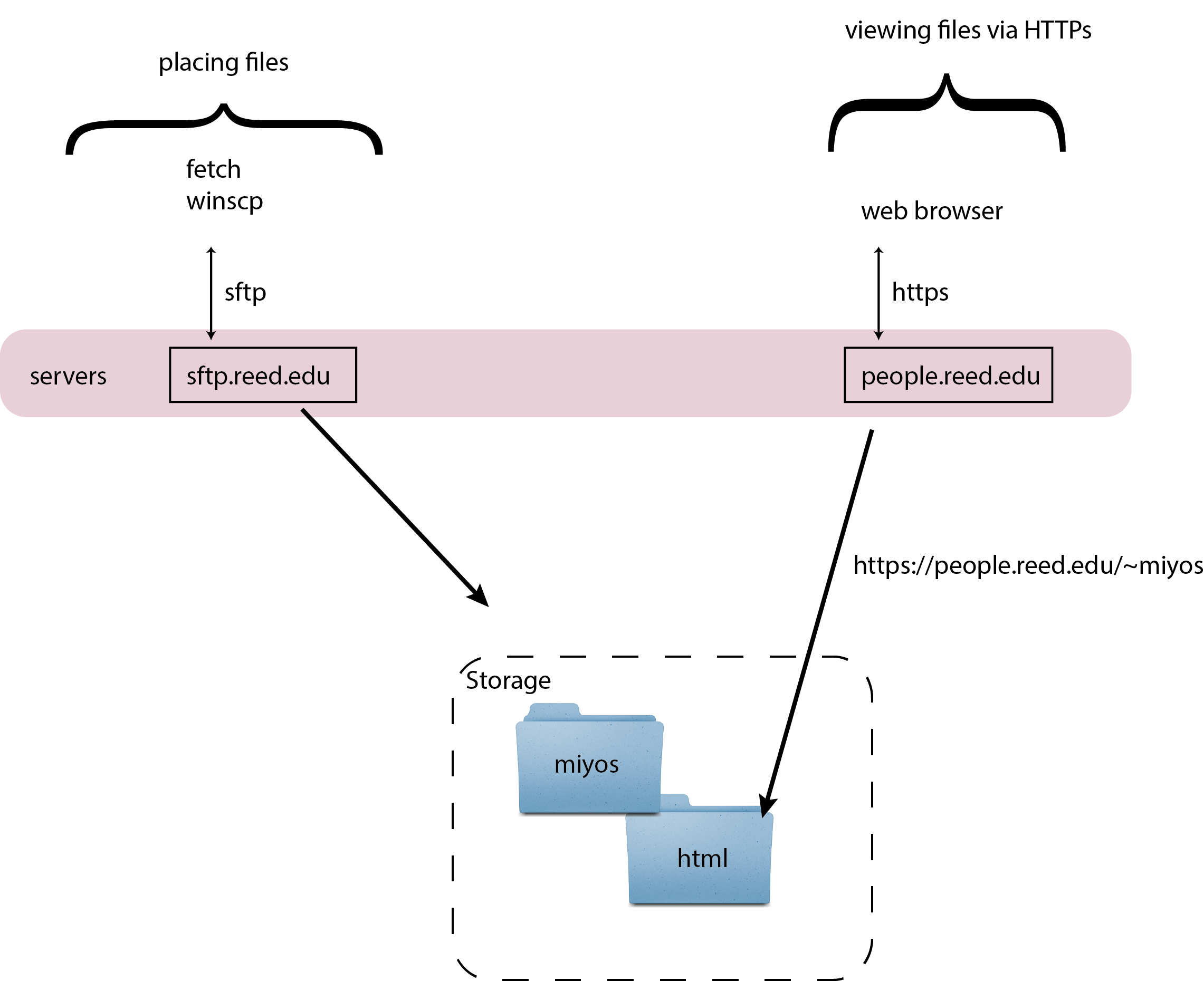
If you put the html file named myhomepage.html inside your html folder on sftp.reed.edu:
sftp server: [your home] -> html -> myhomepage.html
the URL for that file will be: https://people.reed.edu/~miyos/myhomepage.html


If you put the html file named project1.html inside your project folder inside html folder on sftp.reed.edu:
  sftp server: [your home] -> html -> project -> project1.html
https://people.reed.edu/~miyos/project/project1.html


You can use a folder/directory name instead of an html file for the URL. In that case, the web browser will look for a file named index.html in the folder.

The folder html is referenced by the web server as:
https://people.reed.edu/~miyos/

Which is equivalent to:
https://people.reed.edu/~miyos/index.html


miyos → html → project1/ is referenced by the web server as:
https://people.reed.edu/~miyos/project1/

Which is equivalent to:
https://people.reed.edu/~miyos/project1/index.html


Connecting to Reed's server with SFTP
Notes

Lab (Publish/Link/Validate)

You need two files published on the Reed server by end of class:

  1. recipe.html — your recipe from last class, with additions:
    • Add an id attribute to each major section heading (e.g. Ingredients, Preparation). You should have at least 3 anchors.
    • Add at least 3 links to external sites — these should be relevant and contextual. For example: a link to a Wikipedia entry for an ingredient, a link to another recipe for a component dish, a link to the source of the recipe.

  2. nav.html — a separate navigation file:
    • A simple page with a list of links, one per section of your recipe
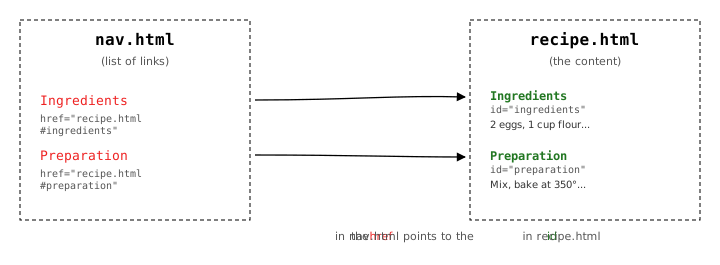
    • Each link must jump to the correct anchor in recipe.html:
      <a href="recipe.html#ingredients">Ingredients</a>
    • Both files must be uploaded — clicking a link in nav.html should work in the browser after publishing
Two separate files, linked together:

Two separate files, linked together: nav.html contains links with hrefs pointing to ids in recipe.html

How to publish (SFTP to sftp.reed.edu):

  1. Open Fetch (or Cyberduck on Windows)
  2. Connect to sftp.reed.edu with your Reed username and password (use SFTP protocol, port 22)
  3. Navigate into your html folder
  4. Drag your files in
  5. Open https://people.reed.edu/~username/recipe.html in your browser to confirm it works

Validate your recipe.html:


Before you're done:
  • Both files are live at people.reed.edu URLs
  • Every link in nav.html scrolls to the correct section in recipe.html
  • At least 3 external links in recipe.html open in the browser
  • The W3C validator shows no errors on recipe.html
Common issues: students upload to home folder instead of the html subfolder (file not visible at people.reed.edu), wrong SFTP vs FTP protocol selected in Cyberduck (must be SFTP), href uses absolute local path instead of relative (recipe.html#ingredients works; /Users/username/... does not). The nav.html file must also be uploaded — students sometimes test locally and forget to publish the second file. Validator errors to expect: missing alt on img (from last class), obsolete attributes, unclosed tags.