Sample file
[before] [after]
By default, clicking a link loads the destination page starting from the very top. But what if the page is long and you want to send the visitor directly to a specific section?
Concept: linking to another page
A.html — the source (where you click)
... page content ...
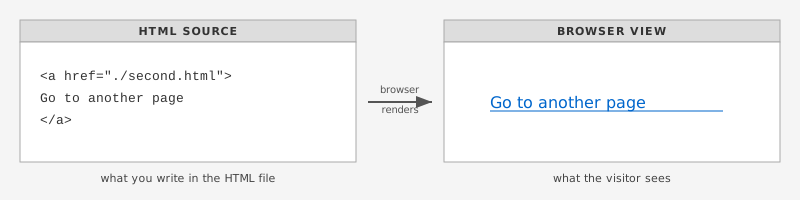
<a href="B.html">
Go to B
</a>
... more content ...
The href value is just the filename — the browser loads that page from the top.
→
B.html — the destination (where you land)
... top of B.html ...
... Chapter 1 content ...
... Chapter 2 content ...
... more content ...
↑ browser always starts at the top of the page
To jump to a specific spot, add a # and an ID name to the href. You also need to mark that spot in the destination page with an id attribute.
Concept: linking to a spot inside a page
A.html — the source (where you click)
... page content ...
<a href="B.html#ch2">
Go to Chapter 2
</a>
... more content ...
The #ch2 after the filename tells the browser where to scroll to inside B.html.
→
B.html — the destination (where you land)
... top of B.html ...
... Chapter 1 content ...
<a id="ch2"></a>
Chapter 2
... Chapter 2 content ...
↑ browser scrolls directly to id="ch2"
Step 1 — Mark the destination spot in B.html using the id attribute:
<a id="ch2"></a>
<h2>Chapter 2</h2>
Step 2 — Link to it from A.html by adding #ch2 after the filename:
<a href="B.html#ch2">Go to Chapter 2</a>
This works across the web too. For example, the Wikipedia page for Reed College
has id="Campus" at the start of the Campus section, so this URL jumps straight there:
https://en.wikipedia.org/wiki/Reed_College#Campus
You can also jump to a spot within the same page. The technique is identical — just leave out the filename and use # and the id alone.
Concept: linking to a spot on the same page
the page — one document, scrolls in place
<a href="#ch2">
Go to Chapter 2
</a>
... more content ...
... more content ...
↓ scroll
... more content ...
... more content ...
<a id="ch2"></a>
Chapter 2
... Chapter 2 content ...
No filename before the # — the browser stays on this page and scrolls to id="ch2"
The code is the same as before — only the href changes. No filename, just the #:
<a href="#ch2">Go to Chapter 2</a>