Review

Image Formats

JPEGBest for photographs. Lossy compression — small file size, slight quality loss. Not good for logos or sharp edges.
PNGBest for graphics, logos, screenshots. Lossless, full color. Supports transparency. Use instead of GIF for most things.
GIFOnly 256 colors. Still used for simple animations. Otherwise PNG is better.
WebPModern format — smaller than JPEG/PNG at similar quality. Supported by all current browsers.
SVGVector format — scales to any size without pixelation. Good for icons and logos.

Ask:
"I have a photo and a logo I want to put on a web page. Which image format should I use for each, and why?"
WebP is now the preferred format for photos on modern sites — same quality as JPEG at roughly 30% smaller file size. SVG is XML-based and can be embedded directly in HTML or styled with CSS.

Including Images — <img>

The <img> tag is a void element — no closing tag.

Use the src attribute to point to the image file:

  <img src="photo.jpg">                          <!-- same folder -->
  <img src="./photo.jpg">                          <!-- same folder -->    
  <img src="images/photo.jpg">                   <!-- subfolder -->
  <img src="../photo.jpg">                        <!-- one folder up -->
  <img src="https://example.com/photo.jpg">      <!-- linked from web -->
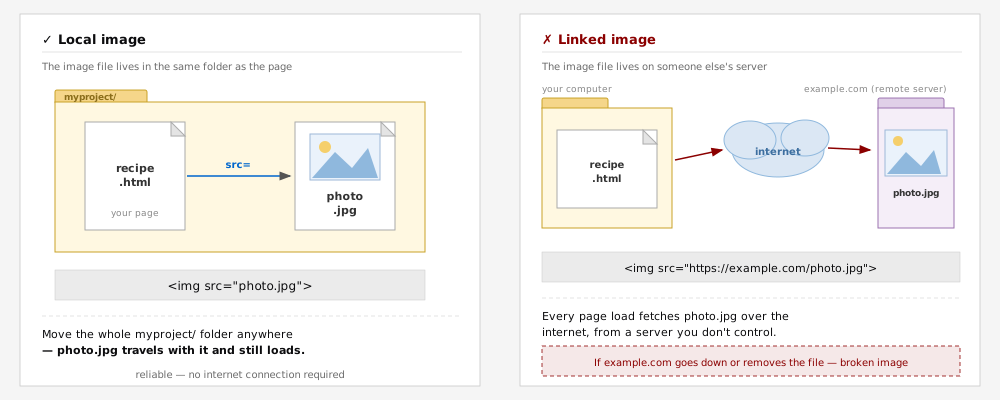
  

Diagram showing local images (in same folder as HTML) vs linked images (on a remote server)
Ask:
"Whats the difference between . and .. when using the src tag in html? " "How do I control the size of an image in HTML? What is the difference between setting size in HTML vs. CSS?" "My image is not showing up — just a broken image icon. What are the most common reasons this happens?"
File path errors are the most common beginner mistake. Remind students: no spaces in filenames, image must be in the right folder relative to the HTML file. The browser looks for the image relative to where the HTML file lives, not where the student is sitting.
Alternative Text — alt=""

Every <img> should have an alt attribute describing what the image shows:

  <img src="salad.jpg" alt="Fresh multi-bean salad in a white bowl">
  

Why it matters:


Ask:
"What makes a good alt text description? Give me examples of bad alt text and how to improve them." "When should I use an empty alt attribute (alt='') and when should I write a description?"
Empty alt="" is correct for decorative images that convey no information — screen readers will skip them. A missing alt attribute is different from alt="" — missing alt means the screen reader may read the filename instead, which is usually unhelpful.

Tables

Use the <table> tag to display data in rows and columns.


NEW STUDENTS (FALL)
2001 2002 2003
First-Year 355 314 301
Transfers 43 33 30
  <table>
    <caption><strong>NEW STUDENTS (FALL)</strong></caption>
    <tr><td></td>           <th>2001</th> <th>2002</th> <th>2003</th></tr>
    <tr><th>First-Year</th> <td>355</td>  <td>314</td>  <td>301</td></tr>
    <tr><th>Transfers</th>  <td>43</td>   <td>33</td>   <td>30</td></tr>
  </table>
  

A table is built from three nested tags:


Ask:
"Show me the HTML to create a table with a caption, one header row, and two data rows. Explain each tag as you go." Then type it yourself — don't paste the generated code without reading it line by line.
Common mistake: students put th/td outside of tr. Stress that every cell must live inside a row. Table borders are off by default — CSS adds them. The style block in the slide adds borders only for the demo table.

Embedding a YouTube Video

YouTube generates the HTML for you — you just copy and paste it.

  1. Go to any YouTube video
  2. Click ShareEmbed
  3. Copy the <iframe> code it gives you
  4. Paste it into your HTML page

The code YouTube gives you uses an <iframe> — a window inside your page that loads another web page (the YouTube player). You don't need to understand all of it yet. Make sure the URL starts with https://.

Heads up: if you open your HTML file directly (double-click it, or a file:// address in the browser), the video may show a YouTube "Error 153" message instead of playing. YouTube checks that the page has a real web address, and a local file does not have one. View your page through a local server instead, for example VS Code's Live Server extension, and the video will load normally.

Try this yourself first — find a YouTube video related to your recipe and embed it before looking anything up. If you get stuck:
"How do I embed a YouTube video in an HTML page? What is an iframe and what does each part of the YouTube embed code do?"
The YouTube embed uses an iframe that loads youtube.com/embed/VIDEO_ID. Opening the file directly via file:// often fails with YouTube's "Error 153, Video player configuration error" instead of playing, because YouTube's embed check requires a real http/https origin, and a local file has none. Serving the page from a local server (VS Code's Live Server extension, python3 -m http.server, etc.) gives it a real origin and the video plays normally.

Installing Live Server

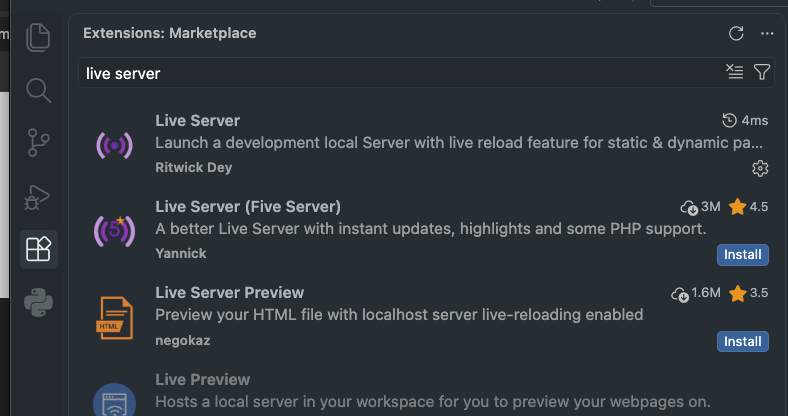
Live Server starts a small local server on your own machine and opens your page in a real browser tab with a real address, like http://127.0.0.1:5500, instead of file://. This is what fixes the YouTube "Error 153" problem from the previous slide.

  1. Open the Extensions view in VS Code (the icon in the left sidebar that looks like four squares, or ⇧⌘X on Mac, Ctrl+Shift+X on Windows)
  2. Search for Live Server (by Ritwick Dey), then click Install VS Code Extensions Marketplace search results for live server, showing Live Server by Ritwick Dey at the top of the list above similarly named extensions like Live Server (Five Server) and Live Server Preview Several similarly named extensions show up. Install the one by Ritwick Dey (top result above), not one of the others.
  3. Open the HTML file you want to preview
  4. Right-click anywhere in the editor and choose Open with Live Server (or use the shortcut ⌘L ⌘O on Mac)
  5. Your default browser opens automatically to something like http://127.0.0.1:5500/html_04.html. Anything that needs a real server, like the YouTube embed, now works.

Once Live Server is running, a "Port: 5500" button appears in the bottom status bar of VS Code. Click it any time to jump back to your page, or to stop the server.

Ask:
"What is Live Server actually doing when I click 'Open with Live Server'? Why does that fix problems that opening the file directly doesn't?"
Live Server (by Ritwick Dey) is a lightweight local dev server packaged as a VS Code extension. It watches the workspace and auto-reloads the browser tab on save. It's different from Live Preview, which shows an embedded panel inside VS Code itself, useful sometimes, but not a substitute for a real browser tab with a real origin.

The <video> Tag — Hosting Your Own Video

Instead of embedding from YouTube, you can host a video file yourself using the HTML5 <video> tag:

  <video src="my_video.mp4" controls>
    <p>Your browser doesn't support HTML video.</p>
  </video>
  

Useful attributes:


Use MP4 (H.264) — it works in all current browsers. Other formats (WebM, Ogg) are alternatives but MP4 is the safe default.

Hosting video yourself means the file lives on your server. For large files, YouTube or Vimeo are usually a better choice — they handle storage, bandwidth, and mobile playback for you.

Ask:
"What is the difference between embedding a YouTube video with an iframe vs. using the HTML video tag? When would I use each?"
autoplay without muted is blocked by most browsers — browsers require user gesture or muted attribute. If students want a background video loop (common design pattern) the combination is: autoplay muted loop playsinline. MP4/H.264 is universally supported in current browsers — the old multi-format approach (webm + ogg + mp4) is no longer necessary for modern browser targets.

Lab — Images, Video, and a Table

Open your recipe page from last class. Add the following (no <pre> tag anywhere (it will break later CSS and JavaScript exercises).)


  1. Two images:
    • One local: a photo on your computer, in the same folder as your HTML file. Use src="filename.jpg"
    • One linked: an image from the web. Use the full https://... URL as the src
    • Both must have a meaningful alt attribute

  2. One YouTube video: find a video related to your recipe, use Share → Embed, paste the iframe into your page

  3. This table, built with <table>

    SALAD, NUTRITION FACTS
    Calories Protein Fat
    Salad 180 6g 9g
    Dressing 120 1g 12g

Before showing the instructor:
  • Both images display in the browser
  • The local image would still work if you moved the folder to another computer
  • The video plays
  • The table matches the one above
  • No <pre> tags in your file
  • You can explain what every tag does if asked
Watch for: spaces in image filenames (breaks src), image file not in the same folder as the HTML, missing alt text, YouTube iframe using http instead of https, table cells outside of tr tags. The "type it yourself" instruction on the table is intentional — prevents copy-paste without understanding.