Classes and IDs

The problem with element selectors alone:

So far, CSS selectors like p, h1, and div target every element of that type. But what if you don't want to style all of them the same way?

/* This turns ALL paragraphs red — no exceptions */
p {
  color: red;
}

What if you have three paragraphs and only want the first and third to be red?
What if you have ten <div> elements and only want one of them to have a blue background?

Element selectors can't do this. You need a way to label specific elements.

In order to make your HTML elements more specific, you can either group them in a class, or name it with a unique id.

Important: unlike previous examples, this requires changing both HTML and CSS.

With element selectors (p, h1, div...) you only wrote CSS — the HTML stayed untouched. Classes and IDs are different: you must first add a label to the HTML element, then write a CSS rule targeting that label.

Step 1 — label the element in HTML Step 2 — target the label in CSS
<p class="important">
   Oh so important.
</p>
.important {
  color: red;
}
Without class="important" in the HTML, the CSS rule .important { ... } has nothing to target.

Classes:

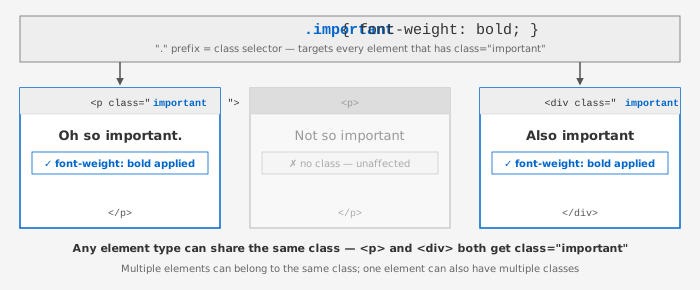
A class is a grouping of elements with the same class name. Multiple elements can belong in the same class. In the following example, the first <p> and the <div> element is in the same class named important.

<p class="important">
   Oh so important.
</p>

<p>
   Not so important
</p>

<div class="important"> 
   Also important
</div>

In order to specify a class in CSS, use a "." (period), then with no intervening space type the name of the class. You can use the class selectors alone or together with another selector.

Sample file [06_classes_and_id.html]

/* CSS selector for all members of the class "important" */
.important {
  font-weight: bold;
}


/* CSS selector for any <p> element in the group "important" */
p.important {
   color: red;
}

These two rules are not redundant — they target different (overlapping) sets of elements. .important is broad: it applies to any element with that class. p.important is narrower: it applies only to <p> elements with that class. Combined, here is what each element actually receives:

Element matched by .important matched by p.important Result
<p class="important"> bold + red
<p> (no class) unstyled
<div class="important"> ✗ (not a <p>) bold only — no red


IDs:

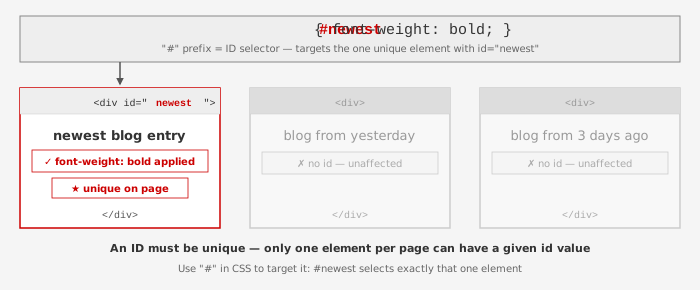
An ID must be unique within the HTML page. In CSS use a # (hash sign) then with no intervening space, the name of the ID. You can combine the ID selector with another selector.

Sample file [06_classes_and_id.html]

<div id="newest">
   newest blog entry 
</div>
<div>
   blog entry from yesterday
</div>
<div>
   blog entry from 3 days ago
</div>


And in CSS:
#newest {
  font-weight: bold;
}
div#newest {
   color: red;
}
Unlike the class case, these two selectors do target the same element — and here is why: an ID must be unique, so there can only ever be one element on the page with id="newest". Whether you write #newest or div#newest, you always land on that same one element.

Selector What it matches Redundant?
#newest the one element with id="newest", whatever type it is Both select the same element — yes, redundant in terms of targeting
div#newest a <div> with id="newest" — same element, since there is only one

So why ever write div#newest? Two reasons:
  1. Specificitydiv#newest has higher specificity than #newest alone (it adds the element type to the weight). If two rules conflict, the more specific one wins.
  2. Clarity — it documents that you are expecting this ID to be on a <div>, which can help when reading the CSS later.
In practice, #newest alone is almost always sufficient for IDs — unlike with classes, where p.important vs .important genuinely narrows the set of matched elements.


Note that you can use IDs and classes as part of a selector using comma separated list or contextual selectors.


/* both div#newest, p.important assigned background color yellow */
div#newest, p.important {
  background-color: yellow;
}


/* em inside p.important assigned background color red */
p.important em {
  background-color: red;
}


/* what is this saying? */
p.important em, div#newest em {
  font-size: 20px;
}


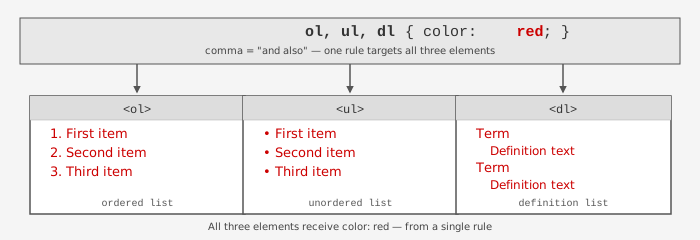
Comma selector — one rule targets multiple selectors:


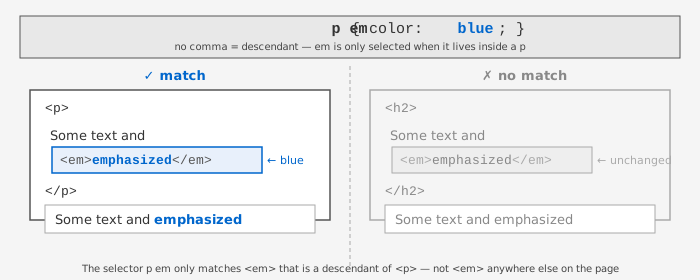
Contextual (descendant) selector — targets elements only when nested inside another:
Ask:
"What is the difference between a CSS class and a CSS ID? When should I use one vs. the other?" "Can an HTML element belong to more than one class? Show me an example." "What does the selector 'p.important' select? How is it different from just '.important'?" "What does 'div#newest, p.important { background-color: yellow; }' do? Why the comma?"
Notes

Advanced CSS Selection

There are more sophisticated CSS selector methods


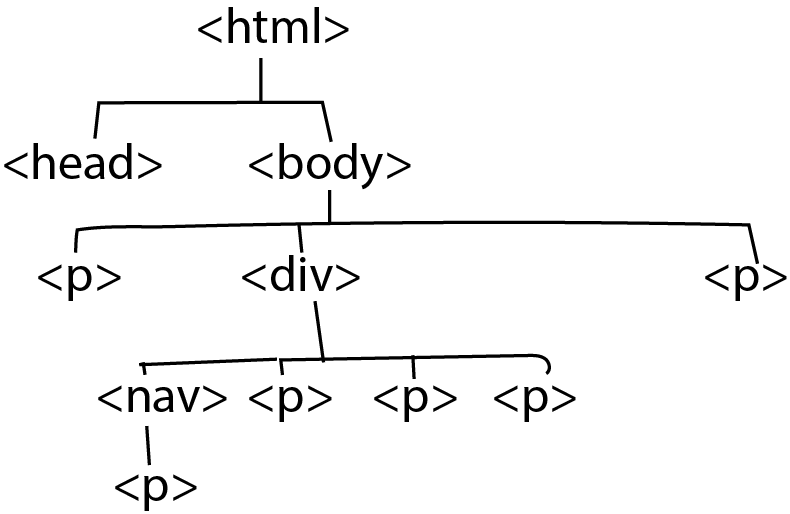
Combinator selectors describe the relationship between selectors

  • descendant (space)
  • child (>)
  • adjacent (+)
  • general sibling (~)


/* selects any and all p element inside a div element */
div p {
   font-size: 110%;
}


/* selects a p tag that is a direct children of div  */
div > p {
   font-size: 90%;
}

/* selects a p tag that is an adjacent (immediately following) sibling of div */
div + p {
   font-size: 80%;
}

/* selects any and all p tag that is sibling of div */
div ~ p {
   font-size: 12pt;
}


See more at w3schools


Pseudo-class allows you to narrow down the selected elements based on some state you specify (eg. Not just any anchor tag but an anchor tag that has been visited).

/* unvisited link */
a:link {
  color: red;
}

/* visited link */
a:visited {
  color: green;
}

/* mouse over link */
a:hover {
  color: blue;
}

/* selected link */
a:active {
  color: yellow;
}


See more at w3schools


Pseudo-element allows you to select only parts of the element using some criteria

p::first-line {
  text-decoration: underline;
}

p::first-letter {
  font-size: 200%;
}

See more at w3schools
Ask:
"What is the difference between 'div p' and 'div > p' in CSS? Give me an example where they produce different results." "What does 'div + p' select? How is it different from 'div ~ p'?" "What is a CSS pseudo-class? What are the most commonly used ones?" "What is the difference between a pseudo-class like ':hover' and a pseudo-element like '::first-letter'?"
Notes

Media Specific Style Sheets

<link rel="stylesheet" href="basic.css"  type="text/css" media="all">
<link rel="stylesheet" href="screen.css"  type="text/css" media="screen">
<link rel="stylesheet" href="print.css"  type="text/css" media="print">

or if you want to embed in the style sheet

<style>
@media screen {
  p {
    color: green;
  }
}

@media print {
  p {
    color: black;
  }
}
</style>

Actually you can be a bit more specific through CSS3 Media Queries [example from w3schools]


<style>
body {
  background-color: yellow;
}

@media only screen and (max-width: 600px) {
  body {
    background-color: lightblue;
  }
}
</style>

Another Example: Use of CSS (and Javascript) for mobile devices using jquery mobile.

Ask:
"What is a CSS media query? Write me an example that changes the background color when the screen is narrower than 600px." "What is the difference between linking a stylesheet with media='screen' vs. using @media screen {} inside the CSS?" "What does 'mobile-first' mean in CSS design? How does it change the way you write media queries?"
Notes

Formatting Text

The tricky thing about selecting a font is that different systems (eg. Mac or Windows) have different set of fonts. That is why you often specify multiple fonts in the order of preference like this:

Sample file [08_font.html]

body {
    font-family: Verdana, Arial, Helvetica, "Avant Garde", sans-serif;
}
h1, h2 {
     font-family: Palatino, Georgia, Times, "Times New Roman", serif;
}

If a font name has multiple words, surround them with quotes (eg. "Avant Garde").

Sans-serif and Serif:

The last entry is a generic font-family that the browser will fall back to if it cannot find any of the specified fonts.


Sans-serif:


Serif:


Other font family:

serif The quick brown fox jumps over the lazy dog
sans-serif The quick brown fox jumps over the lazy dog
cursive The quick brown fox jumps over the lazy dog
fantasy The quick brown fox jumps over the lazy dog
monospace The quick brown fox jumps over the lazy dog
Ask:
"Why do CSS font-family declarations list multiple fonts? What is a 'font stack' and what is the fallback font?" "What is the difference between serif and sans-serif? When is each typically used in design?" "What fonts are considered 'web-safe'? Why doesn't every font work in every browser?"
Notes

Web and fonts

Usually, in order to use a certain font, it must be installed on the computer in which the browser is run.

For a list of fonts that are considered safe to use on the web (installed on the majority of systems), check the following web pages:

Alternatively, use fonts that are hosted elsewhere, for example, Google Fonts .

<link href="https://fonts.googleapis.com/css?family=EB+Garamond&display=swap" rel="stylesheet">
<span style="font-family: 'EB Garamond', serif;">A shining crescent far beneath the flying vessel.</span>
A shining crescent far beneath the flying vessel.
Notes

Font-Style/Weight

body {
    font-family: Verdana, Arial, Helvetica, "Avant Garde", sans-serif;
}

div {
     font-style: italic; 
}


p {
     font-style: normal; 
}


h1 {
     font-style: oblique
}

h1.important {
     font-weight: bolder;
}

p.mostimportant  {
     font-weight: bolder
}

p {
     font-weight: normal;
}


Notes

Font-Size


body {
  font-size: 120%;
}

li {
  font-size: .8em;
}

p {
  font-size: 12px;
}

Units of Measure:

Ask:
"What is the difference between px, em, and % for CSS font sizes? Which should I use and why?"
Notes

Text-Align

body {
  text-align: right;
}

h1, h2, h3, h4, h5, h6 {
  text-align: center;
}

p {
  text-align: left;
}
Notes

Text Misc


/*
Selecting the First Letter of an Element:
[element]:first-letter
*/
p:first-letter  {
  color: Maroon;
  font-size: 1.2em;
}


body {
  line-height: 1.3; /* multiplied by the elements font-size */
}


/*
font: [optional font-style: normal or italic]  [optional font-weight: normal, bold bolder, or lighter]  [font size] [optional /line_height (specified with a "slash")]  [font-famies: comma separated font names and font family name ];
*/
li { 
  font: italic bold small-caps 1.1em /1.5 "Arial Black", Arial, sans-serif;
}


CSS selector reference@W3Schools
Notes

Links

Sample file [08_font.html]

/* links that are not activated */
a:link { 
  color: navy;
}

/* links already visited */
a:visited {
  color:darkolivegreen;
}

/* links selected via the keyboard */
a:focus {
  color: firebrick;
}

/* links with mouse hovering over */
a:hover {
  color: firebrick;
}

/* links activated */
a:active {
  color: red;
}
Notes

Color names

https://www.w3schools.com/colors/colors_names.asp
Notes

Numeric specification of color

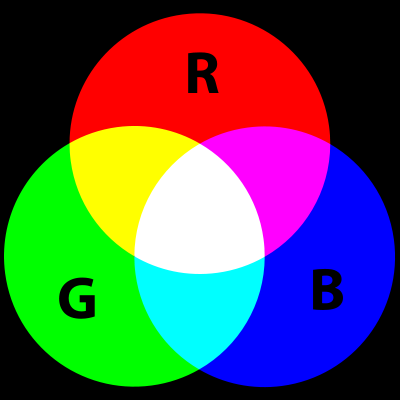
Additive color model: where you have three primary colors (red, green, and blue). If you add all three primary colors at their maximum strength, you get white. If you add no colors, you get black.


Using RGB:

     color: rgb(100%, 0%, 0%); /* red */
     color: rgb(50%, 50%, 50%); /* neutral gray. You always get neutral gray if you mix equal amounts of r,g,b) */

/* It is also common to use numbers from 0-255 to specify the amount of each color. */
     color: rgb(255, 255, 0); /* yellow */
     color: rgb(0, 255, 255); /* cyan */


Hexadecimal numbers:

Hexadecimal means you are using base 16. It uses sixteen distinct symbols, most often the symbols 0-9 to represent values zero to nine, and A,B,C,D,E,F (or alternatively a-f) to represent values ten to fifteen. When specifying colors in hexadecimal numbers, you use the form #rrggbb.

     
     color: #000000;  /* black */
     color: #FF0000; /* red */
     color: #FFFF00; /* yellow */
     color: #080808;  /* what can you say about this color? */
Notes

Lab — CSS Classes, IDs & Selectors (Option 1, see 2 below)

Goal: style a pre-built HTML page using only an embedded style sheet — no inline styles, no changes to the HTML.

Download the following files onto your computer:
[dml_layout_template.html]   [studentwork.jpg]

Rules (apply to all parts):
  • Do not modify the HTML (no inline styles). Only use an embedded <style> block inside <head>.
  • Use what is already given in the HTML — class, ID, and element names. No new attributes.

Part 1 — Colors using classes, IDs, and selectors
Add CSS so that the page is colored like this: [dml_layout_color.pdf]

Colors used: cyan, red, navy, blue, brown, green, olive, orange, purple

  • Use class, ID, contextual, and combinator selectors.
  • Lists have two HTML elements (ol, li). Look carefully at which one controls the numbering color.
  • If you have trouble identifying which element has which color, open this annotated file — the colors are labeled as HTML comments.
Ask:
"I want to color only the li elements inside an ol — not li elements inside a ul. What CSS selector should I write?" "My CSS rule '.highlight { color: orange; }' is not working even though the element has class='highlight'. What could be wrong?"

Part 2 — Typography
Still working in the same file, add the following font styling:
  1. Set a font stack on the body — choose a sans-serif font with at least two fallbacks ending in the generic sans-serif.
  2. Set a different font family (serif) on all headings (h1, h2, h3).
  3. Make the main heading (h1) larger — use em units, not px.
  4. Use font-style: italic and font-weight: bold on at least one element of your choice.
  5. Set line-height on the body to improve readability.
  6. Use ::first-letter on a paragraph to make the opening letter larger or a different color.
Ask:
"What is a CSS font stack? Write me one for a clean sans-serif body font with safe fallbacks." "If I set font-size: 1.5em on an h1, but the body font-size is 16px, what is the actual pixel size of the h1?" "What does ::first-letter do in CSS? Show me an example."

Part 3 — Links and color
  1. Style all four link states on the page using pseudo-classes: a:link, a:visited, a:hover, a:active. Use a different color for each state.
  2. For at least two of your color values anywhere in the file, replace the named color with an equivalent hex value (e.g. red#FF0000). Use the color reference at w3schools to look them up.
Ask:
"What is the correct order for styling a:link, a:visited, a:hover, a:active? Does the order matter?" "What is the hex color value for navy? How do I read a hex color like #4B0082?" "Here is my finished CSS: [paste yours]. Can you identify which type each selector is — element, class, ID, contextual, combinator, or pseudo-class?"
Notes