CSS: Cascading Style Sheets

The basic idea: "I want the following HTML to look this way".


CSS selectors that specify the HTML segment selected  {
  
    define a style for the selection
}

Any HTML tag (like h1, p, li...etc) can serve as a CSS selector and the style specified will be applied to all occurrences of that specified tag.

h1 {
     /* comments in CSS are different from comments in html */

     /* 
     property: value ; 
     */
color: blue; background: yellow;
}
Ask:
"What is CSS and why is it separate from HTML? What problem does it solve?" "What is a CSS property? Give me a list of 10 common ones with examples."
Notes

Three ways to apply CSS styles to HTML


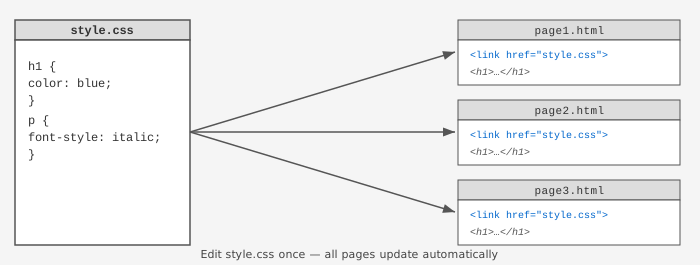
  1. Loading external style sheets
    • By creating a separate file describing a style, you can apply the style to all your pages by loading the external file

    External CSS diagram — one stylesheet linked to multiple HTML pages

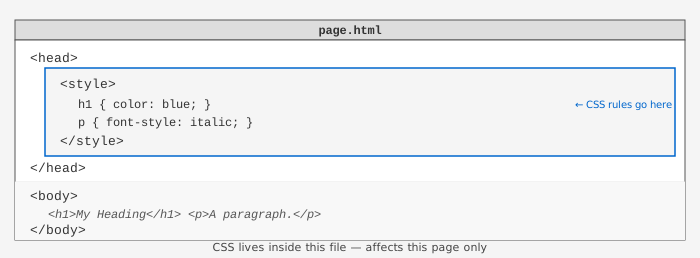
  2. Embedded style sheets
    • Embed the style sheet in your HTML file using the <style> element inside <head>

    Embedded CSS diagram — style block inside head element

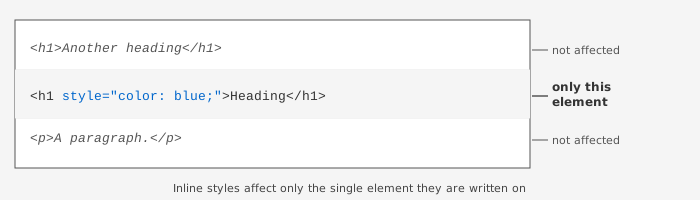
  3. Inline styles
    • Apply a style directly to a single HTML tag using the style attribute. Least preferred — mixes content and presentation.

    Inline CSS diagram — style attribute on one element only
Ask:
"Show me a simple HTML page that uses all three kinds of CSS — external, embedded, and inline — on the same element. Explain what each one does." "What is the difference between external, embedded, and inline CSS? When should I use each?" "Why is inline CSS considered bad practice? Are there cases where it makes sense?"
Notes
Loading external style sheets

By creating a separate file describing a style, you can apply the style to all your pages by loading the external style sheet.

Create a file with the CSS rules and save it with the .css extension.

File: mystyle.css

      
h1 {
     /* comments in CSS are different from comments in html */
     color: blue;
     background: yellow;
}


p {
   font-style: italic;
   font-weight: bold;
}


Then use the <link> tag inside <head> to load the CSS file into your HTML:

File: 01_external_css.html


<!DOCTYPE html>
<html>

<head>
<title> My First HTML Page with External CSS </title>

<link rel="stylesheet" href="mystyle.css" type="text/css" />
</head>


<body>
<h1> My Heading </h1>
<p> This is a paragraph. </p>
</body>
</html>

Here, we are assuming that mystyle.css and the html file is in the same directory. If it is in another directory, specify the URL the same way you did with links (eg. absolute or relative pathnames).

Notes

Embedding Style Sheets in HTML file

File: [before], [after]

<!DOCTYPE html>
<html>
<head>
<title> My First HTML Page with Embedded CSS </title>
<style>
h1 {
     /* comments in CSS are different from comments in html */
     color: blue;
     background: yellow;
}
p {
   font-style: italic;
}
</style>
</head>
<body>
<h1> My Heading </h1>
<p> This is a paragraph. </p>
</body>
</html>

Place the <style> element inside <head>. It must come before the body content so styles are loaded before the page renders.

Notes

Applying Inline Styles

This method is considered least desirable since they intertwine content with presentation.

File: [before], [after]

<!DOCTYPE html>
<html>
<head>
<title> My First HTML Page with Embedded CSS </title>
</head>
<body>
<h1 style="color: red; background: blue;"> My Heading </h1>
<p style="font-style: normal; font-weight: bold"> This is a paragraph. </p>
</body>
</html>
Notes

CSS Selectors

CSS selectors to specify the HTML parts  {
      define a style for the selection
}

Here are some methods for creating CSS selectors:

Using the name of the HTML element
/* Select all paragraph elements */
p {
     color: red;
}

/* Select all h1 elements */
h1 {
     color: blue;
}

/* Select the body element */
body {
     background: black;
}

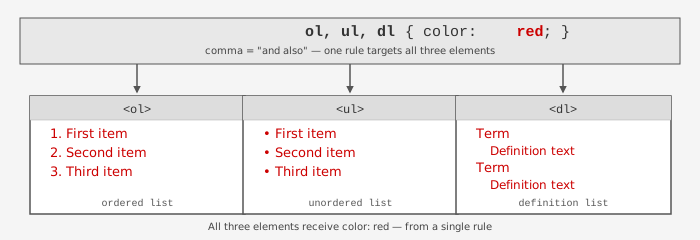
Comma Separated Lists: applies the style rules to all the tags listed. Hence, the following:

ol, ul, dl {
     color: red;
}

is the same as

ol { color: red; }
ul { color: red; }
dl { color: red; }

Diagram showing comma-separated CSS selector applying one rule to ol, ul, and dl elements


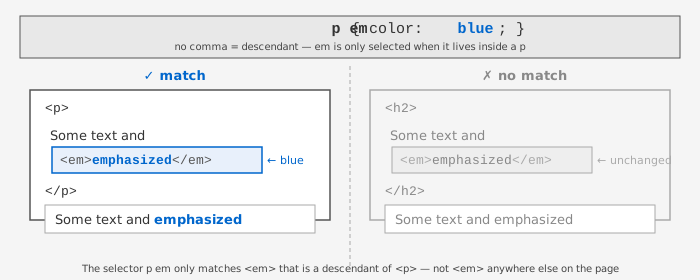
Contextual Selectors: used to specify elements in a specific context where the element is nested inside another element.

The following, without commas in between the elements, specifies only the <em> elements nested inside the <p> element.

p em {
     color: blue;
}
Diagram showing p em selector: em inside p turns blue, em inside h2 is not affected
What about this? (selects <em> only when it is inside an <a> that is inside a <p>)
p a em {
     color: blue;
}
Ask:
"What is a CSS selector? What are the most common types — element, class, id, descendant?" "What is the difference between p em and p, em in CSS?" "What does it mean that a CSS class selector is more specific than an element selector?"
Notes

Cascading Rules

Sample file

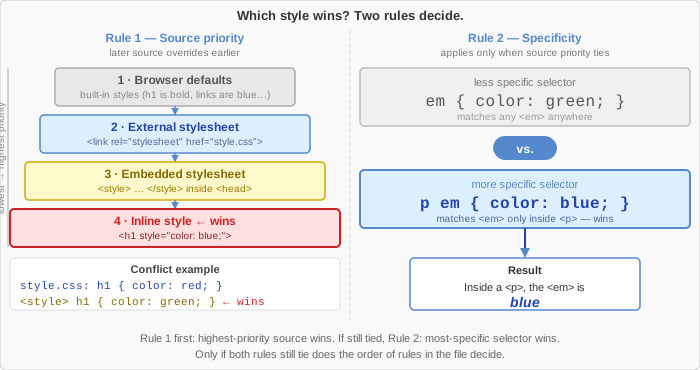
Styles come from many sources.

  1. Browser
  2. Various external style sheets
  3. Embedded style sheets
  4. Inline style

When styles from different sources conflict, CSS has rules for which one wins. Sources with higher priority override lower-priority ones.

For example, most browsers define a default style for <h1>. If you do not write your own rule for <h1>, the browser's default applies — it wins by default because nothing overrides it. As soon as you add your own rule, yours wins.


The styles applied follow the following logic:

  • The style that appears the most recent in the order CSS is loaded (Browser -> External -> Embedded -> Inline) overrides the previous definitions.
    • Since inline styles always appear the latest, it overrides everything else.

  • If there are ties, the more specific CSS selector takes precedence.
    • <p> <em> is more specific than <em>

Cascade rules diagram: source priority and specificity
Ask:
"What does 'cascading' mean in CSS? Why is it called that?" "If I set color: red in an external stylesheet and color: blue in an inline style on the same element, which wins and why?" "What is CSS specificity? How do I calculate which rule wins when two rules conflict?"
Notes

Developer Tools


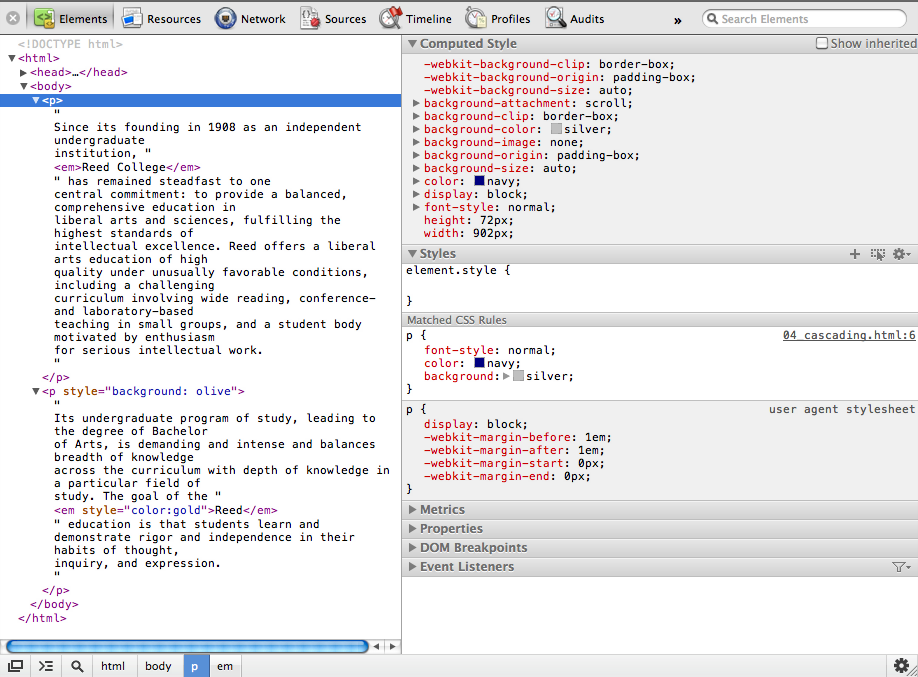
In the Elements panel, click any element to see which CSS rules apply to it. The Computed tab shows the final resolved value after all cascade rules have been applied — this is the one that actually controls what you see.

Ask:
"How do I use Chrome DevTools to see which CSS rules are applied to an element? What does the Computed tab show?" "In DevTools I can see a CSS rule with a strikethrough. What does that mean?"
Notes

DIV and SPAN


Now you can specify arbitrary areas of HTML code with CSS by using the <div> and <span> tag

What if I have more than one <div> or <span> in my HTML page and want to style them differently?

→ Use class and id attributes — covered next class.

Ask:
"What is the difference between div and span in HTML? When would I use one vs. the other?" "What does 'block-level' vs 'inline' mean in HTML? Give me examples of each."
Notes

Lab — Three Style Sheets, One Element

Download recipe.html. You will apply all three kinds of CSS to the <h1> heading and use DevTools to watch the cascade resolve in real time.


  1. External stylesheet — create a new file style.css in the same folder as your recipe:
    h1 {
        background: yellow;
        color: red;
    }
    Link it from <head> (that is in between the <head> and </head> tags!:
    <link rel="stylesheet" href="style.css">

  2. Embedded stylesheet — add a <style> block inside <head> after the <link>:
    h1 {
        color: green;
    }

  3. Inline style — wrap only the first word of your <h1> in a <span>:
    <h1><span style="color: blue;">Fresh</span> Multi-Bean...</h1>

Before you run it — predict:

  • What color will "Fresh" be?
  • What color will "Multi-Bean..." be?
  • What will the background of the whole <h1> be?
Write down your prediction, then open the page and check.

Ask:
"I have an h1 with: external CSS sets color:red and background:yellow; embedded CSS sets color:green; and an inline span sets color:blue on the first word. What color will each part of the h1 be, and why? Walk me through the cascade step by step."

Confirm with DevTools:

  1. Right-click on "Fresh" → Inspect
  2. In the Styles panel: notice which rules are listed and which have a strikethrough (overridden)
  3. Click the Computed tab: find color — what does it show?
  4. Now click on "Multi-Bean..." — how do the Styles and Computed panels differ from "Fresh"?

Before you're done:
  • "Fresh" is blue
  • "Multi-Bean..." is green
  • The <h1> background is yellow
  • You can explain to the instructor why each part is that color — not just what it looks like, but which rule won and why
  • DevTools Computed tab confirms the final color value for each part
Notes

Lab — Selector Targeting Challenge

Your job: apply specific styles to exactly the right elements — without touching anything else. Start by creating a new file targets.html and paste in this HTML:

<!DOCTYPE html>
<html>
<head>
  <title>Selector Challenge</title>
  <style>
    /* your selectors go here */
  </style>
</head>
<body>

  <h2>Favorite Foods</h2>
  <ul>
    <li>Pizza with <em>extra cheese</em></li>
    <li>Tacos</li>
    <li>Ramen with <em>soft egg</em></li>
  </ul>

  <h2>Least Favorite Foods</h2>
  <ol>
    <li>Liver</li>
    <li>Brussels sprouts with <em>butter sauce</em></li>
  </ol>

  <p>I will <em>never</em> eat liver.</p>
  <p>But I <em>always</em> make room for pizza.</p>

</body>
</html>

Write one CSS rule for each target — using only what's inside the <style> block:

  1. Make all <em> inside <li> red. The <em> tags inside <p> should stay unstyled.

  2. Make only the <em> inside <ul> <li> bold. The one inside <ol> <li> should not be bold.

  3. Make all <li> in the <ol> italic. The <ul> items should not be italic.

Before you write any CSS — predict:

  • For target 1: what selector would select only <em> inside a <li>?
  • For target 2: how do you narrow it further to only the <ul> branch?
  • Is there any selector you write for target 3 that might accidentally affect target 1 or 2?
Write your three selectors on paper before typing them.

Ask:
"I want to make em elements red only when they're inside a li. My selector is: [paste yours]. Will this also affect the em tags inside my p elements? Why or why not?" "What is the difference between 'ul li em' and 'li em' as CSS selectors? Which one is more specific?" "My rule 'ol li { font-style: italic; }' — will it affect anything inside my ul? Explain the descendant selector logic."

Confirm with DevTools:

  1. Right-click "extra cheese" → Inspect. Do you see your li em rule? Is it active or struck through?
  2. Right-click "never" (inside <p>) → Inspect. Does your rule appear at all?
  3. Right-click "butter sauce" (inside <ol>) → Inspect. Is it red? Is it bold? Should it be?

Before you're done:
  • "extra cheese" and "soft egg" are red and bold
  • "butter sauce" is red but not bold
  • "never" and "always" are neither red nor bold
  • "Liver" and "Brussels sprouts" are italic; "Pizza", "Tacos", "Ramen" are not
  • You can explain to the instructor why each rule hits exactly what it hits — and nothing more
Notes